

網站可透過 Web Bluetooth API 與藍牙裝置通訊。

如果網站能以安全且保護隱私的方式與附近的藍牙裝置通訊,您覺得如何?這樣一來,心率監測器、會唱歌的燈泡,甚至是烏龜都能直接與網站互動。
目前為止,只有平台專屬應用程式可以與藍牙裝置互動。Web Bluetooth API 的目標是改變這種情況,並將這項技術帶到網頁瀏覽器。
事前準備
本文假設您已具備藍牙低功耗 (BLE) 和通用屬性設定檔的基礎知識。
雖然 Web Bluetooth API 規格尚未定案,但規格作者正積極尋找熱情的開發人員試用這個 API,並提供規格意見和實作意見。
ChromeOS、Android 版 Chrome 6.0、Mac (Chrome 56) 和 Windows 10 (Chrome 70) 支援部分 Web Bluetooth API。也就是說,您應該可以要求及連線至附近的藍牙低功耗裝置、讀取/寫入藍牙特徵、接收 GATT 通知、瞭解藍牙裝置何時中斷連線,甚至讀取及寫入藍牙描述元。詳情請參閱 MDN 的「瀏覽器相容性」表格。
如果是 Linux 和舊版 Windows,請在 about://flags 中啟用 #experimental-web-platform-features 標記。
適用於原始碼試用
為了盡可能收集開發人員在實際使用 Web Bluetooth API 時的意見,Chrome 先前已在 Chrome 53 中新增這項功能,做為 ChromeOS、Android 和 Mac 的來源試用功能。
試用期已於 2017 年 1 月順利結束。
安全規定
如要瞭解安全性方面的取捨,建議您參閱 Chrome 團隊軟體工程師 Jeffrey Yasskin 撰寫的「Web Bluetooth 安全性模型」一文,他負責制定 Web Bluetooth API 規格。
僅限 HTTPS
由於這項實驗性 API 是網頁新增的強大功能,因此僅適用於安全環境。也就是說,您需要建構時考量 TLS。
必須使用手勢
為確保安全,透過 navigator.bluetooth.requestDevice 探索藍牙裝置時,必須由使用者手勢觸發,例如輕觸或按一下滑鼠。我們討論的是監聽 pointerup、click 和 touchend 事件。
button.addEventListener('pointerup', function(event) {
  // Call navigator.bluetooth.requestDevice
});
深入瞭解程式碼
Web Bluetooth API 很大程度依賴 JavaScript Promise。如果您不熟悉 Promise,請參閱這篇實用的 Promise 教學課程。還有一件事,() => {} 是 ECMAScript 2015 箭頭函式。
要求藍牙裝置
這個版本的 Web Bluetooth API 規格可讓以 Central 角色執行的網站,透過 BLE 連線連線至遠端 GATT 伺服器。支援藍牙 4.0 以上版本的裝置間通訊。
網站使用
navigator.bluetooth.requestDevice 要求存取附近的裝置時,瀏覽器會提示使用者選擇裝置,讓他們選取裝置或取消要求。
navigator.bluetooth.requestDevice() 函式會採用定義篩選條件的必要物件。這些篩選器只會傳回符合部分已放送的藍牙 GATT 服務和/或裝置名稱的裝置。
服務篩選器
舉例來說,如要要求藍牙裝置播送 Bluetooth GATT 電池服務:
navigator.bluetooth.requestDevice({ filters: [{ services: ['battery_service'] }] })
.then(device => { /* … */ })
.catch(error => { console.error(error); });
不過,如果您的藍牙 GATT 服務不在標準化藍牙 GATT 服務清單中,您可以提供完整的藍牙 UUID,或是 16 位元或 32 位元的簡短形式。
navigator.bluetooth.requestDevice({
  filters: [{
    services: [0x1234, 0x12345678, '99999999-0000-1000-8000-00805f9b34fb']
  }]
})
.then(device => { /* … */ })
.catch(error => { console.error(error); });
名稱篩選器
您也可以根據透過 name 篩選器鍵宣傳的裝置名稱,或甚至透過 namePrefix 篩選器鍵宣傳的名稱前置字串,要求藍牙裝置。請注意,在這種情況下,您也需要定義 optionalServices 金鑰,才能存取服務篩選器中未包含的任何服務。否則稍後嘗試存取時會發生錯誤。
navigator.bluetooth.requestDevice({
  filters: [{
    name: 'Francois robot'
  }],
  optionalServices: ['battery_service'] // Required to access service later.
})
.then(device => { /* … */ })
.catch(error => { console.error(error); });
製造商資料篩選器
您也可以根據使用 manufacturerData 篩選器鍵宣傳的製造商專屬資料,要求藍牙裝置。這個鍵是物件陣列,其中包含名為 companyIdentifier 的必要 Bluetooth 公司 ID 鍵。您也可以提供資料前置字元,篩選出以該前置字元開頭的藍牙裝置製造商資料。請注意,您也需要定義 optionalServices 鍵,才能存取服務篩選器中未包含的任何服務。否則稍後嘗試存取時會發生錯誤。
// Filter Bluetooth devices from Google company with manufacturer data bytes
// that start with [0x01, 0x02].
navigator.bluetooth.requestDevice({
  filters: [{
    manufacturerData: [{
      companyIdentifier: 0x00e0,
      dataPrefix: new Uint8Array([0x01, 0x02])
    }]
  }],
  optionalServices: ['battery_service'] // Required to access service later.
})
.then(device => { /* … */ })
.catch(error => { console.error(error); });
遮罩也可以搭配資料前置字元使用,比對製造商資料中的某些模式。如要瞭解詳情,請參閱 Bluetooth 資料篩選器說明。
「排除」篩選器
您可以在 navigator.bluetooth.requestDevice() 中使用 exclusionFilters 選項,從瀏覽器挑選器中排除部分裝置。可用於排除符合較廣泛篩選條件,但不支援的裝置。
// Request access to a bluetooth device whose name starts with "Created by".
// The device named "Created by Francois" has been reported as unsupported.
navigator.bluetooth.requestDevice({
  filters: [{
    namePrefix: "Created by"
  }],
  exclusionFilters: [{
    name: "Created by Francois"
  }],
  optionalServices: ['battery_service'] // Required to access service later.
})
.then(device => { /* … */ })
.catch(error => { console.error(error); });
沒有篩選器
最後,您可以使用 acceptAllDevices 鍵顯示附近所有藍牙裝置,而不必使用 filters。您也需要定義 optionalServices 金鑰,才能存取部分服務。否則稍後嘗試存取時會收到錯誤訊息。
navigator.bluetooth.requestDevice({
  acceptAllDevices: true,
  optionalServices: ['battery_service'] // Required to access service later.
})
.then(device => { /* … */ })
.catch(error => { console.error(error); });
連線至藍牙裝置
現在你有了 BluetoothDevice,該怎麼做呢?讓我們連線至藍牙遙控器 GATT 伺服器,其中包含服務和特徵定義。
navigator.bluetooth.requestDevice({ filters: [{ services: ['battery_service'] }] })
.then(device => {
  // Human-readable name of the device.
  console.log(device.name);

  // Attempts to connect to remote GATT Server.
  return device.gatt.connect();
})
.then(server => { /* … */ })
.catch(error => { console.error(error); });
讀取藍牙特徵
我們在此連線至遠端藍牙裝置的 GATT 伺服器。現在我們要取得主要 GATT 服務,並讀取屬於這項服務的特徵。舉例來說,我們來讀取裝置電池目前的電量。
在下方的範例中,battery_level 是標準化電池電量特徵。
navigator.bluetooth.requestDevice({ filters: [{ services: ['battery_service'] }] })
.then(device => device.gatt.connect())
.then(server => {
  // Getting Battery Service…
  return server.getPrimaryService('battery_service');
})
.then(service => {
  // Getting Battery Level Characteristic…
  return service.getCharacteristic('battery_level');
})
.then(characteristic => {
  // Reading Battery Level…
  return characteristic.readValue();
})
.then(value => {
  console.log(`Battery percentage is ${value.getUint8(0)}`);
})
.catch(error => { console.error(error); });
如果您使用自訂的藍牙 GATT 特徵,可以提供完整的藍牙 UUID,或是 16 位元或 32 位元的簡短形式給 service.getCharacteristic。
請注意,您也可以在特徵上新增 characteristicvaluechanged 事件監聽器,處理讀取其值的作業。請參閱「讀取特徵值變更範例」,瞭解如何選擇性處理即將發生的 GATT 通知。
…
.then(characteristic => {
  // Set up event listener for when characteristic value changes.
  characteristic.addEventListener('characteristicvaluechanged',
                                  handleBatteryLevelChanged);
  // Reading Battery Level…
  return characteristic.readValue();
})
.catch(error => { console.error(error); });

function handleBatteryLevelChanged(event) {
  const batteryLevel = event.target.value.getUint8(0);
  console.log('Battery percentage is ' + batteryLevel);
}
寫入藍牙特徵
寫入藍牙 GATT 特徵與讀取一樣簡單。這次,我們使用「心率控制點」,將心率監測裝置的「消耗的能量」欄位值重設為 0。
我保證這裡沒有魔法。詳情請參閱「心率控制點特徵頁面」。
navigator.bluetooth.requestDevice({ filters: [{ services: ['heart_rate'] }] })
.then(device => device.gatt.connect())
.then(server => server.getPrimaryService('heart_rate'))
.then(service => service.getCharacteristic('heart_rate_control_point'))
.then(characteristic => {
  // Writing 1 is the signal to reset energy expended.
  const resetEnergyExpended = Uint8Array.of(1);
  return characteristic.writeValue(resetEnergyExpended);
})
.then(_ => {
  console.log('Energy expended has been reset.');
})
.catch(error => { console.error(error); });
接收 GATT 通知
接下來,我們來看看如何接收裝置上「心率測量」特徵的變更通知:
navigator.bluetooth.requestDevice({ filters: [{ services: ['heart_rate'] }] })
.then(device => device.gatt.connect())
.then(server => server.getPrimaryService('heart_rate'))
.then(service => service.getCharacteristic('heart_rate_measurement'))
.then(characteristic => characteristic.startNotifications())
.then(characteristic => {
  characteristic.addEventListener('characteristicvaluechanged',
                                  handleCharacteristicValueChanged);
  console.log('Notifications have been started.');
})
.catch(error => { console.error(error); });

function handleCharacteristicValueChanged(event) {
  const value = event.target.value;
  console.log('Received ' + value);
  // TODO: Parse Heart Rate Measurement value.
  // See https://github.com/WebBluetoothCG/demos/blob/gh-pages/heart-rate-sensor/heartRateSensor.js
}
通知範例會說明如何使用 stopNotifications() 停止通知,並正確移除已新增的 characteristicvaluechanged 事件監聽器。
中斷與藍牙裝置的連線
為提供更優質的使用者體驗,建議您監聽中斷連線事件,並邀請使用者重新連線:
navigator.bluetooth.requestDevice({ filters: [{ name: 'Francois robot' }] })
.then(device => {
  // Set up event listener for when device gets disconnected.
  device.addEventListener('gattserverdisconnected', onDisconnected);

  // Attempts to connect to remote GATT Server.
  return device.gatt.connect();
})
.then(server => { /* … */ })
.catch(error => { console.error(error); });

function onDisconnected(event) {
  const device = event.target;
  console.log(`Device ${device.name} is disconnected.`);
}
您也可以呼叫 device.gatt.disconnect(),中斷網頁應用程式與藍牙裝置的連線。這會觸發現有的 gattserverdisconnected 事件監聽器。請注意,如果其他應用程式已與藍牙裝置通訊,這項操作將不會停止藍牙裝置通訊。如要深入瞭解,請參閱裝置中斷連線範例和自動重新連線範例。
讀取及寫入藍牙描述元
藍牙 GATT 描述元是描述特徵值的屬性。 您可以讀取及寫入這些特徵,方式與藍牙 GATT 特徵類似。
舉例來說,讓我們看看如何讀取裝置健康溫度計的測量間隔使用者說明。
在下方範例中,health_thermometer 是健康體溫計服務,measurement_interval 是測量間隔特徵,而 gatt.characteristic_user_description 是特徵使用者說明描述元。
navigator.bluetooth.requestDevice({ filters: [{ services: ['health_thermometer'] }] })
.then(device => device.gatt.connect())
.then(server => server.getPrimaryService('health_thermometer'))
.then(service => service.getCharacteristic('measurement_interval'))
.then(characteristic => characteristic.getDescriptor('gatt.characteristic_user_description'))
.then(descriptor => descriptor.readValue())
.then(value => {
  const decoder = new TextDecoder('utf-8');
  console.log(`User Description: ${decoder.decode(value)}`);
})
.catch(error => { console.error(error); });
我們已讀取裝置健康溫度計的測量間隔使用者說明,現在來看看如何更新並寫入自訂值。
navigator.bluetooth.requestDevice({ filters: [{ services: ['health_thermometer'] }] })
.then(device => device.gatt.connect())
.then(server => server.getPrimaryService('health_thermometer'))
.then(service => service.getCharacteristic('measurement_interval'))
.then(characteristic => characteristic.getDescriptor('gatt.characteristic_user_description'))
.then(descriptor => {
  const encoder = new TextEncoder('utf-8');
  const userDescription = encoder.encode('Defines the time between measurements.');
  return descriptor.writeValue(userDescription);
})
.catch(error => { console.error(error); });
範例、試用版和程式碼研究室
以下所有 Web Bluetooth 範例都已通過測試。為充分體驗這些範例,建議您安裝 [BLE Peripheral Simulator Android App],模擬具有電池服務、心率服務或健康溫度計服務的 BLE 周邊裝置。
新手
- 裝置資訊 - 從 BLE 裝置擷取基本裝置資訊。
- 電池電量 - 從宣傳電池資訊的 BLE 裝置擷取電池資訊。
- 重設能量:重設藍牙低功耗裝置所放送心率資訊的能量消耗。
- 特徵屬性:顯示 BLE 裝置中特定特徵的所有屬性。
- 通知 - 啟動及停止來自 BLE 裝置的特徵通知。
- 裝置中斷連線:連線至 BLE 裝置後,中斷連線並接收通知。
- 取得特徵 - 從 BLE 裝置取得廣告服務的所有特徵。
- 取得描述元:從 BLE 裝置取得所宣傳服務的所有特徵描述元。
- 製造商資料篩選器 - 從符合製造商資料的 BLE 裝置擷取基本裝置資訊。
- 排除篩選器 - 從具備基本排除篩選器的 BLE 裝置擷取基本裝置資訊。
合併多項作業
- GAP 特徵 - 取得 BLE 裝置的所有 GAP 特徵。
- 裝置資訊特徵 - 取得 BLE 裝置的所有裝置資訊特徵。
- 連結遺失 - 設定 BLE 裝置的「警示等級」特徵 (readValue 和 writeValue)。
- 探索服務和特徵:探索 BLE 裝置中所有可存取的主要服務及其特徵。
- 自動重新連線:使用指數輪詢演算法,重新連線至已中斷連線的 BLE 裝置。
- 讀取特徵值變更 - 讀取電池電量,並接收 BLE 裝置的變更通知。
- 讀取描述元 - 從 BLE 裝置讀取服務的所有特徵描述元。
- 寫入描述元 - 寫入 BLE 裝置上的「特徵使用者說明」描述元。
此外,也請查看我們精心規劃的 Web Bluetooth 示範和官方 Web Bluetooth 程式碼研究室。
程式庫
- web-bluetooth-utils 是 npm 模組,可為 API 新增一些便利函式。
- 最熱門的 Node.js BLE 中央模組 noble 提供 Web Bluetooth API 墊片。這樣一來,您就能 webpack/browserify noble,不必使用 WebSocket 伺服器或其他外掛程式。
- angular-web-bluetooth 是 Angular 的模組,可抽象化設定 Web Bluetooth API 所需的所有樣板。
工具
- 「開始使用 Web Bluetooth」是簡單的網頁應用程式,可產生所有 JavaScript 樣板程式碼,方便您開始與藍牙裝置互動。輸入裝置名稱、服務和特徵,定義其屬性,即可開始使用。
- 如果您是藍牙開發人員,Web Bluetooth 開發人員工作室外掛程式也會為藍牙裝置產生 Web Bluetooth JavaScript 程式碼。
訣竅
Chrome 提供 Bluetooth Internals 頁面 (位於 about://bluetooth-internals),方便您檢查附近藍牙裝置的所有資訊,包括狀態、服務、特徵和描述元。
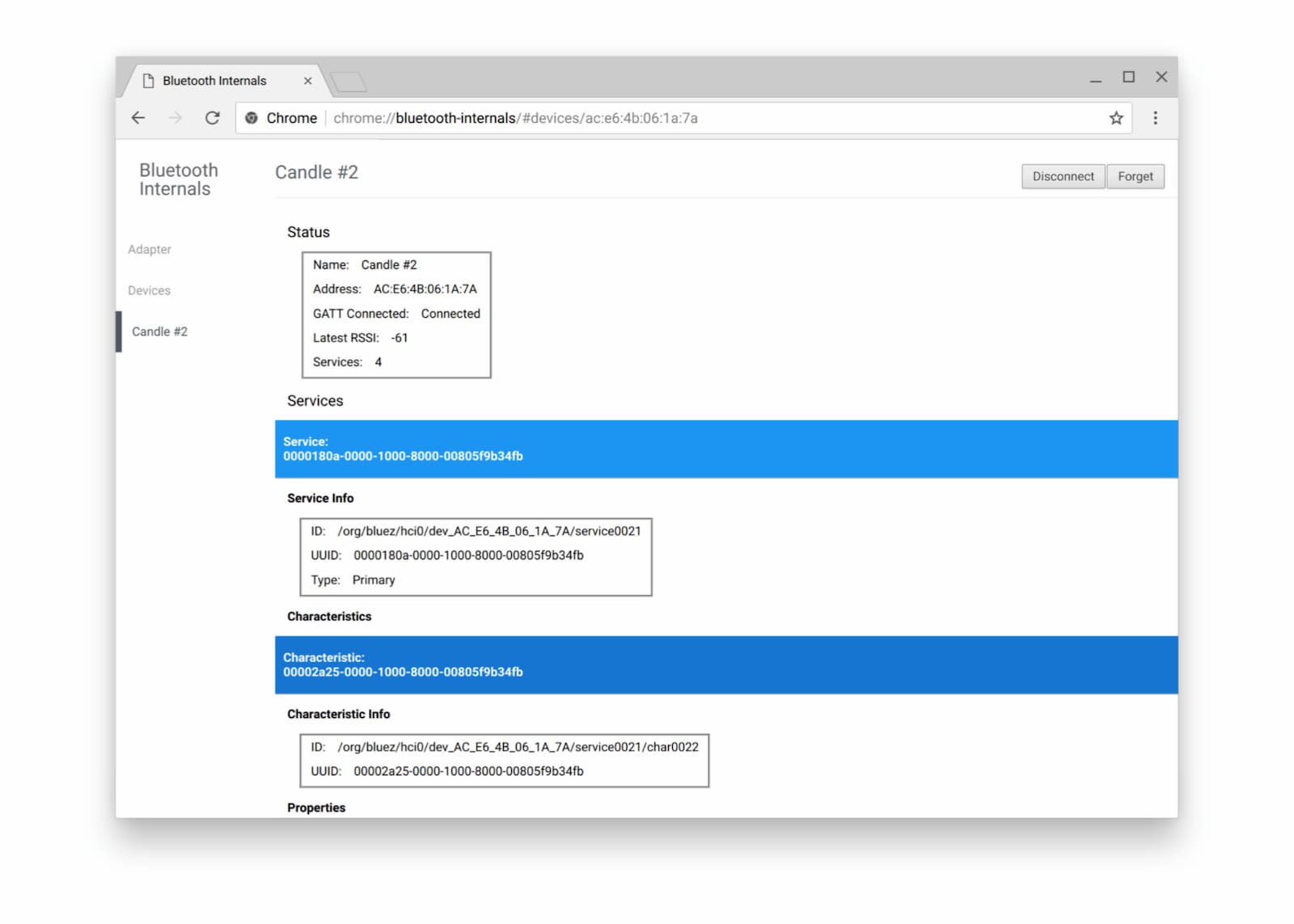
此外,由於有時很難偵錯藍牙,建議您查看官方的「如何回報 Web Bluetooth 錯誤」頁面。
後續步驟
請先查看瀏覽器和平台實作狀態,瞭解目前實作的 Web Bluetooth API 部分。
雖然目前仍未完成,但您可以搶先一窺近期會推出的功能:
- 掃描附近的 BLE 廣告會透過
navigator.bluetooth.requestLEScan()進行。 - 新的
serviceadded事件會追蹤新發現的藍牙 GATT 服務,而serviceremoved事件則會追蹤已移除的服務。每當藍牙 GATT 服務新增或移除任何特徵和/或描述元時,就會觸發新的servicechanged事件。
支援 API
您是否打算使用 Web Bluetooth API?您的公開支持有助於 Chrome 團隊優先處理功能,並向其他瀏覽器供應商展現支援這些功能的重要性。
使用主題標記 #WebBluetooth 傳送推文給 @ChromiumDev,告訴我們您在何處使用這項功能,以及使用方式。
資源
特別銘謝
感謝 Kayce Basques 審查。