

Web Bluetooth API 允许网站与蓝牙设备通信。

如果我告诉你,网站可以安全且保护隐私的方式与附近的蓝牙设备通信,你会怎么想?这样一来,心率监测器、唱歌灯泡,甚至海龟都可以直接与网站互动。
在此之前,只有特定于平台的应用才能与蓝牙设备互动。Web Bluetooth API 旨在改变这种情况,并将其引入到 Web 浏览器中。
开始前须知
本文档假定您对蓝牙低功耗 (BLE) 和通用属性配置文件的工作原理有一些基本了解。
虽然 Web Bluetooth API 规范尚未最终确定,但规范作者正在积极寻找热情的开发者来试用此 API,并就规范和实现提供反馈。
ChromeOS、Chrome for Android 6.0、Mac(Chrome 56)和 Windows 10(Chrome 70)中提供 Web Bluetooth API 的子集。这意味着您应该能够请求和连接附近的蓝牙低功耗设备、读取/写入蓝牙特征、接收 GATT 通知、了解蓝牙设备何时断开连接,甚至读取和写入蓝牙描述符。如需了解详情,请参阅 MDN 的浏览器兼容性表格。
对于 Linux 和更早版本的 Windows,请在 about://flags 中启用 #experimental-web-platform-features 标志。
可用于源试用
为了尽可能多地收集使用 Web Bluetooth API 的开发者的反馈,Chrome 之前已在 Chrome 53 中添加此功能,作为 ChromeOS、Android 和 Mac 的源试用。
试用期已于 2017 年 1 月成功结束。
安全性要求
如需了解安全方面的权衡取舍,我建议您阅读 Jeffrey Yasskin(Chrome 团队的软件工程师,负责 Web Bluetooth API 规范)撰写的Web 蓝牙安全模型博文。
仅拥有以 HTTPS 开头的网址
由于此实验性 API 是添加到 Web 中的强大新功能,因此仅在安全上下文中可用。这意味着您需要考虑 TLS 来进行构建。
需要用户手势
作为一项安全功能,使用 navigator.bluetooth.requestDevice 发现蓝牙设备必须由用户手势(例如触摸或鼠标点击)触发。我们讨论的是监听 pointerup、click 和 touchend 事件。
button.addEventListener('pointerup', function(event) {
  // Call navigator.bluetooth.requestDevice
});
进入代码
Web Bluetooth API 在很大程度上依赖于 JavaScript Promise。如果您不熟悉它们,请查看这篇出色的 Promise 教程。还有一点,() => {} 是 ECMAScript 2015 箭头函数。
请求蓝牙设备
此版本的 Web Bluetooth API 规范允许以中心角色运行的网站通过 BLE 连接连接到远程 GATT 服务器。它支持实现蓝牙 4.0 或更高版本的设备之间的通信。
当网站使用 navigator.bluetooth.requestDevice 请求访问附近设备时,浏览器会提示用户使用设备选择器,用户可以在其中选择一个设备或取消请求。
navigator.bluetooth.requestDevice() 函数接受一个定义过滤条件的必需对象。这些过滤条件用于仅返回与某些已广播的蓝牙 GATT 服务和/或设备名称匹配的设备。
服务过滤条件
例如,如需请求广播 Bluetooth GATT Battery Service 的蓝牙设备,请执行以下操作:
navigator.bluetooth.requestDevice({ filters: [{ services: ['battery_service'] }] })
.then(device => { /* … */ })
.catch(error => { console.error(error); });
不过,如果您的蓝牙 GATT 服务不在标准化蓝牙 GATT 服务列表中,您可以提供完整的蓝牙 UUID,也可以提供 16 位或 32 位的简短形式。
navigator.bluetooth.requestDevice({
  filters: [{
    services: [0x1234, 0x12345678, '99999999-0000-1000-8000-00805f9b34fb']
  }]
})
.then(device => { /* … */ })
.catch(error => { console.error(error); });
名称过滤条件
您还可以使用 name 过滤条件键请求正在广播的蓝牙设备(基于设备名称),甚至可以使用 namePrefix 过滤条件键请求名称前缀。请注意,在这种情况下,您还需要定义 optionalServices 键,才能访问未包含在服务过滤器中的任何服务。否则,您稍后在尝试访问这些文件时会收到错误消息。
navigator.bluetooth.requestDevice({
  filters: [{
    name: 'Francois robot'
  }],
  optionalServices: ['battery_service'] // Required to access service later.
})
.then(device => { /* … */ })
.catch(error => { console.error(error); });
制造商数据过滤器
还可以使用 manufacturerData 过滤条件键根据正在广播的制造商特定数据请求蓝牙设备。此键是一个对象数组,其中包含一个名为 companyIdentifier 的强制性蓝牙公司标识符键。您还可以提供数据前缀,用于过滤以该前缀开头的蓝牙设备中的制造商数据。请注意,您还需要定义 optionalServices 键,才能访问未包含在服务过滤器中的任何服务。否则,您稍后尝试访问这些文件时会收到错误消息。
// Filter Bluetooth devices from Google company with manufacturer data bytes
// that start with [0x01, 0x02].
navigator.bluetooth.requestDevice({
  filters: [{
    manufacturerData: [{
      companyIdentifier: 0x00e0,
      dataPrefix: new Uint8Array([0x01, 0x02])
    }]
  }],
  optionalServices: ['battery_service'] // Required to access service later.
})
.then(device => { /* … */ })
.catch(error => { console.error(error); });
掩码还可以与数据前缀搭配使用,以匹配制造商数据中的某些模式。如需了解详情,请参阅 Bluetooth 数据过滤条件说明。
排除过滤条件
navigator.bluetooth.requestDevice() 中的 exclusionFilters 选项可让您从浏览器选择器中排除某些设备。它可以用于排除符合更广泛的过滤条件但不受支持的设备。
// Request access to a bluetooth device whose name starts with "Created by".
// The device named "Created by Francois" has been reported as unsupported.
navigator.bluetooth.requestDevice({
  filters: [{
    namePrefix: "Created by"
  }],
  exclusionFilters: [{
    name: "Created by Francois"
  }],
  optionalServices: ['battery_service'] // Required to access service later.
})
.then(device => { /* … */ })
.catch(error => { console.error(error); });
没有过滤条件
最后,您可以使用 acceptAllDevices 键(而非 filters)来显示附近的所有蓝牙设备。您还需要定义 optionalServices 密钥才能访问某些服务。否则,您稍后在尝试访问这些文件时会收到错误消息。
navigator.bluetooth.requestDevice({
  acceptAllDevices: true,
  optionalServices: ['battery_service'] // Required to access service later.
})
.then(device => { /* … */ })
.catch(error => { console.error(error); });
连接到蓝牙设备
现在您已获得 BluetoothDevice,接下来该怎么做?我们来连接到保存服务和特征定义的蓝牙遥控器 GATT 服务器。
navigator.bluetooth.requestDevice({ filters: [{ services: ['battery_service'] }] })
.then(device => {
  // Human-readable name of the device.
  console.log(device.name);

  // Attempts to connect to remote GATT Server.
  return device.gatt.connect();
})
.then(server => { /* … */ })
.catch(error => { console.error(error); });
读取蓝牙特征
在此处,我们连接到远程蓝牙设备的 GATT 服务器。现在,我们想要获取一个主 GATT 服务,并读取属于该服务的特征。例如,我们尝试读取设备电池的当前电量。
在下面的示例中,battery_level 是标准化的电池电量特征。
navigator.bluetooth.requestDevice({ filters: [{ services: ['battery_service'] }] })
.then(device => device.gatt.connect())
.then(server => {
  // Getting Battery Service…
  return server.getPrimaryService('battery_service');
})
.then(service => {
  // Getting Battery Level Characteristic…
  return service.getCharacteristic('battery_level');
})
.then(characteristic => {
  // Reading Battery Level…
  return characteristic.readValue();
})
.then(value => {
  console.log(`Battery percentage is ${value.getUint8(0)}`);
})
.catch(error => { console.error(error); });
如果您使用自定义蓝牙 GATT 特征,则可以向 service.getCharacteristic 提供完整的蓝牙 UUID,也可以提供简短的 16 位或 32 位形式。
请注意,您还可以为特征添加 characteristicvaluechanged 事件监听器,以处理读取其值的操作。请查看读取特征值已更改示例,了解如何选择性地处理即将到来的 GATT 通知。
…
.then(characteristic => {
  // Set up event listener for when characteristic value changes.
  characteristic.addEventListener('characteristicvaluechanged',
                                  handleBatteryLevelChanged);
  // Reading Battery Level…
  return characteristic.readValue();
})
.catch(error => { console.error(error); });

function handleBatteryLevelChanged(event) {
  const batteryLevel = event.target.value.getUint8(0);
  console.log('Battery percentage is ' + batteryLevel);
}
写入蓝牙特征
写入蓝牙 GATT 特征与读取蓝牙 GATT 特征一样简单。这次,我们使用心率控制点将心率监测器设备上“消耗的能量”字段的值重置为 0。
我保证这里没有任何魔法。心率控制点特征页面中对此进行了详细说明。
navigator.bluetooth.requestDevice({ filters: [{ services: ['heart_rate'] }] })
.then(device => device.gatt.connect())
.then(server => server.getPrimaryService('heart_rate'))
.then(service => service.getCharacteristic('heart_rate_control_point'))
.then(characteristic => {
  // Writing 1 is the signal to reset energy expended.
  const resetEnergyExpended = Uint8Array.of(1);
  return characteristic.writeValue(resetEnergyExpended);
})
.then(_ => {
  console.log('Energy expended has been reset.');
})
.catch(error => { console.error(error); });
接收 GATT 通知
现在,我们来看看如何在设备上的心率测量特征发生变化时收到通知:
navigator.bluetooth.requestDevice({ filters: [{ services: ['heart_rate'] }] })
.then(device => device.gatt.connect())
.then(server => server.getPrimaryService('heart_rate'))
.then(service => service.getCharacteristic('heart_rate_measurement'))
.then(characteristic => characteristic.startNotifications())
.then(characteristic => {
  characteristic.addEventListener('characteristicvaluechanged',
                                  handleCharacteristicValueChanged);
  console.log('Notifications have been started.');
})
.catch(error => { console.error(error); });

function handleCharacteristicValueChanged(event) {
  const value = event.target.value;
  console.log('Received ' + value);
  // TODO: Parse Heart Rate Measurement value.
  // See https://github.com/WebBluetoothCG/demos/blob/gh-pages/heart-rate-sensor/heartRateSensor.js
}
通知示例展示了如何使用 stopNotifications() 停止通知,以及如何正确移除添加的 characteristicvaluechanged 事件监听器。
断开与蓝牙设备的连接
为了提供更好的用户体验,您可能需要监听断开连接事件并邀请用户重新连接:
navigator.bluetooth.requestDevice({ filters: [{ name: 'Francois robot' }] })
.then(device => {
  // Set up event listener for when device gets disconnected.
  device.addEventListener('gattserverdisconnected', onDisconnected);

  // Attempts to connect to remote GATT Server.
  return device.gatt.connect();
})
.then(server => { /* … */ })
.catch(error => { console.error(error); });

function onDisconnected(event) {
  const device = event.target;
  console.log(`Device ${device.name} is disconnected.`);
}
您还可以调用 device.gatt.disconnect() 以断开 Web 应用与蓝牙设备的连接。这将触发现有的 gattserverdisconnected 事件监听器。请注意,如果另一个应用已在与蓝牙设备通信,此方法不会停止蓝牙设备通信。如需深入了解,请查看设备断开连接示例和自动重新连接示例。
读取和写入蓝牙描述符
蓝牙 GATT 描述符是描述特征值的属性。您可以像读取和写入蓝牙 GATT 特征一样读取和写入它们。
例如,我们来看看如何读取设备健康温度计的测量间隔的用户说明。
在以下示例中,health_thermometer 是健康体温计服务,measurement_interval 是测量间隔特征,gatt.characteristic_user_description 是特征用户说明描述符。
navigator.bluetooth.requestDevice({ filters: [{ services: ['health_thermometer'] }] })
.then(device => device.gatt.connect())
.then(server => server.getPrimaryService('health_thermometer'))
.then(service => service.getCharacteristic('measurement_interval'))
.then(characteristic => characteristic.getDescriptor('gatt.characteristic_user_description'))
.then(descriptor => descriptor.readValue())
.then(value => {
  const decoder = new TextDecoder('utf-8');
  console.log(`User Description: ${decoder.decode(value)}`);
})
.catch(error => { console.error(error); });
现在,我们已经读取了用户对设备健康温度计测量间隔的描述,接下来看看如何更新它并写入自定义值。
navigator.bluetooth.requestDevice({ filters: [{ services: ['health_thermometer'] }] })
.then(device => device.gatt.connect())
.then(server => server.getPrimaryService('health_thermometer'))
.then(service => service.getCharacteristic('measurement_interval'))
.then(characteristic => characteristic.getDescriptor('gatt.characteristic_user_description'))
.then(descriptor => {
  const encoder = new TextEncoder('utf-8');
  const userDescription = encoder.encode('Defines the time between measurements.');
  return descriptor.writeValue(userDescription);
})
.catch(error => { console.error(error); });
示例、演示和 Codelab
以下所有 Web 蓝牙示例均已成功测试。为了充分体验这些示例,建议您安装 [BLE 外围设备模拟器 Android 应用],该应用可模拟具有电池服务、心率服务或健康温度计服务的 BLE 外围设备。
新手
- 设备信息 - 从 BLE 设备检索基本设备信息。
- 电池电量 - 从广播电池信息的 BLE 设备检索电池信息。
- 重置能量 - 重置通过 BLE 设备广告心率计算的能量消耗。
- 特征属性 - 显示 BLE 设备中特定特征的所有属性。
- 通知 - 启动和停止来自 BLE 设备的特征通知。
- 设备断开连接 - 在连接到 BLE 设备后,断开连接并收到断开连接通知。
- 获取特征 - 从 BLE 设备获取所宣传服务的所有特征。
- 获取描述符 - 从 BLE 设备获取已宣传服务的所有特征描述符。
- 制造商数据过滤器 - 从与制造商数据匹配的 BLE 设备检索基本设备信息。
- 排除过滤条件 - 从具有基本排除过滤条件的 BLE 设备检索基本设备信息。
组合使用多个操作
- GAP 特征 - 获取 BLE 设备的所有 GAP 特征。
- 设备信息特征 - 获取 BLE 设备的所有设备信息特征。
- 链接丢失 - 设置 BLE 设备的“提醒级别”特征(readValue 和 writeValue)。
- 发现服务和特征 - 从 BLE 设备发现所有可访问的主服务及其特征。
- 自动重新连接 - 使用指数退避算法重新连接到已断开连接的 BLE 设备。
- 读取特征值已更改 - 读取电池电量并接收来自 BLE 设备的更改通知。
- 读取描述符 - 从 BLE 设备读取服务的所有特征描述符。
- 写入描述符 - 写入 BLE 设备上的描述符“特征用户说明”。
您还可以查看我们精选的 Web 蓝牙演示和官方 Web 蓝牙 Codelab。
库
- web-bluetooth-utils 是一个 npm 模块,可为该 API 添加一些便利函数。
- 在最热门的 Node.js BLE 中心模块 noble 中,有一个 Web 蓝牙 API shim。这样,您就可以在无需 WebSocket 服务器或其他插件的情况下对 noble 进行 webpack/browserify。
- angular-web-bluetooth 是一个 Angular 模块,可抽象化配置 Web Bluetooth API 所需的所有样板代码。
工具
- Web 蓝牙入门是一个简单的 Web 应用,可生成所有 JavaScript 样板代码,以便开始与蓝牙设备互动。输入设备名称、服务、特征,定义其属性,然后就可以开始使用了。
- 如果您已经是蓝牙开发者,Web 蓝牙开发者工作室插件还会为您的蓝牙设备生成 Web 蓝牙 JavaScript 代码。
提示
Chrome 中提供了一个 Bluetooth Internals 页面(网址为 about://bluetooth-internals),您可以在其中检查附近蓝牙设备的所有信息:状态、服务、特征和描述符。
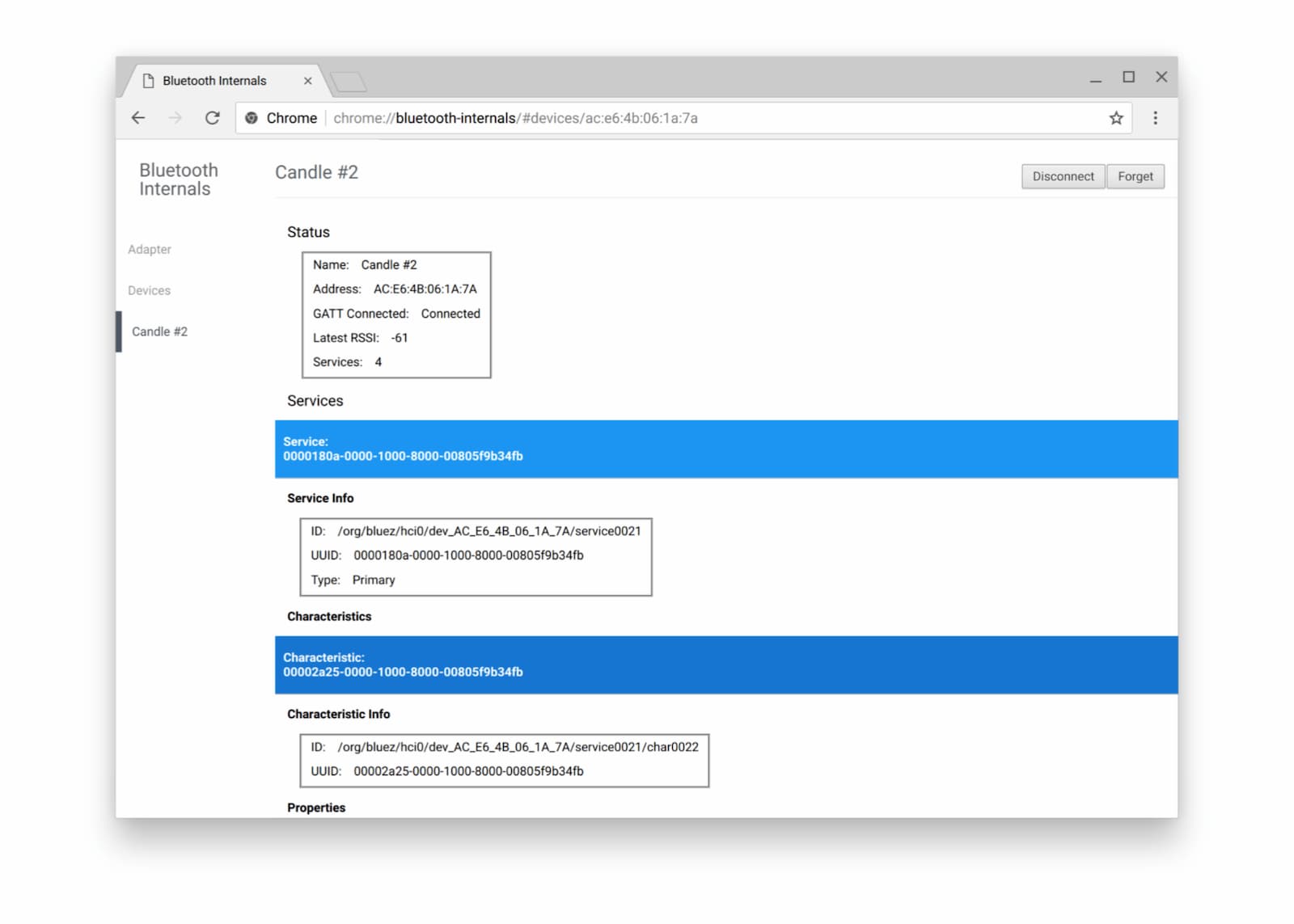
我还建议您查看官方如何提交 Web 蓝牙 bug 页面,因为调试蓝牙有时会很困难。
后续步骤
首先,请查看浏览器和平台实现状态,了解目前正在实现 Web Bluetooth API 的哪些部分。
虽然该功能仍处于开发阶段,但您可以先睹为快,了解在不久的将来会推出哪些功能:
- 扫描附近的 BLE 广播将通过
navigator.bluetooth.requestLEScan()进行。 - 新的
serviceadded事件将跟踪新发现的蓝牙 GATT 服务,而serviceremoved事件将跟踪已移除的服务。当任何特征和/或描述符从蓝牙 GATT 服务中添加或移除时,系统都会触发新的servicechanged事件。
显示对 API 的支持
您是否打算使用 Web 蓝牙 API?您的公开支持有助于 Chrome 团队确定功能优先级,并向其他浏览器供应商展示支持这些功能的重要性。
使用 #ChromiumDev 标签向 @ChromiumDev 发送推文,告诉我们您在何处以及如何使用它。#WebBluetooth
资源
致谢
感谢 Kayce Basques 的审核。