

Earlier this year in February 2026, Chrome 145 introduced the native Split View which provides users with the ability to view and manage tabs side-by-side within the same window, removing the need to rely on third-party tools to manage separate OS windows. While users can manually add and remove tabs from a split view through browser controls, it was not possible for developers to programmatically control these new tabs layouts in Chrome extensions.
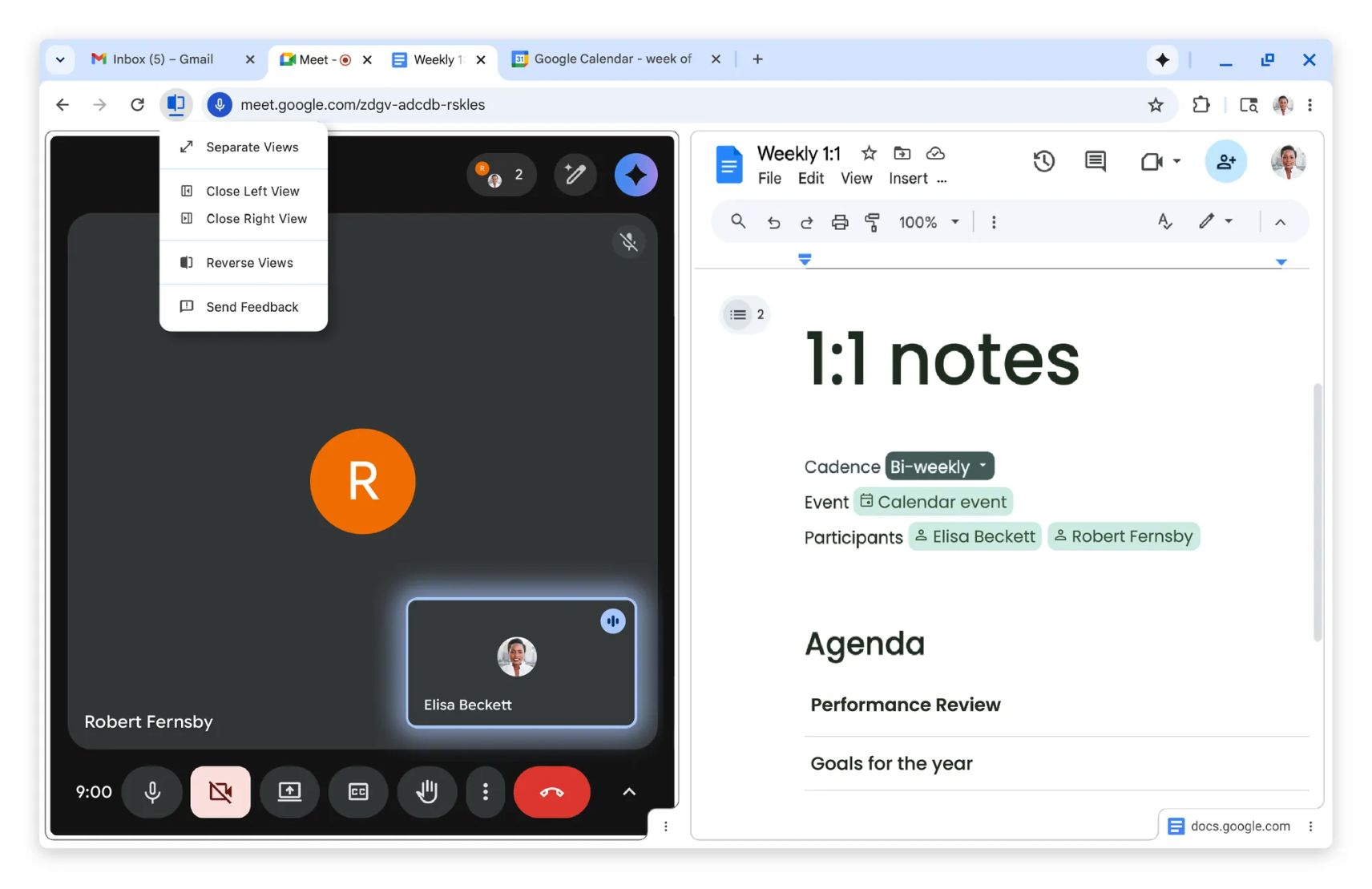
We're excited to announce the new Split View API, available starting in Chrome 155! Developed in close collaboration with Mozilla and other browser vendors in the WebExtensions Community Group, this new API allows extensions to detect, create, and manage built-in split views.
Demo
How it works
Previously, extensions building side-by-side experiences relied on brittle
workarounds like resizing multiple native windows, embedding pages in <iframe>
elements, or using side panels. Now, the new Split View API integrates directly
with Chrome's Tabs
API to unlock
new tabs layout management capabilities.
Manifest permissions
The Split View API is part of the browser.tabs namespace, and they don't
require any permissions to use.
Identifying split views
Every Tab object contains a
splitViewId property.
If the tab is part of a split view, it shares a unique identifier with its
paired tab; otherwise, the splitViewId defaults to -1.
// Querying all split views in the current windows
const tabs = await browser.tabs.query({ currentWindow: true });
const splitViews = tabs.map(tab => tab.splitViewId).filter(splitViewId => splitViewId !== -1);
General constraints
In order for two tabs to be able to join a split view, they must meet the following requirements:
- Tabs must be (or created) adjacent to each other.
- Tabs must not be already in a split view.
- Tabs must have the same
pinned,windowId, andgroupIdstate.
Conversely, when two tabs are unsplit, they will retain the same pinned,
windowId, groupId states along with the relative positioning to each
other.
Creating split views
There are two methods by which an extension can create a new split view:
- Create a new tab that will split with an existing tab using the new
splitWithTabIdparameter inbrowser.tabs.create. - Pair two existing tabs with the new
browser.tabs.createSplitmethod.
Examples
You can create a new tab using splitWithTabId to split with an existing tab.
await browser.tabs.create({splitWithTabId: existingTab.id});
By default, the new tab will be created to the right of the existing tab.
To create a new tab to the left of the existing tab, set the index as that tab's index:
await browser.tabs.create({splitWithTabId: existingTab.id, index: existingTab.index});
You can also create a new split view by pairing two existing tabs.
await browser.tabs.createSplit([existingTab1.id, existingTab2.id]);
Unsplitting split views
To separate a split view into two independent tabs, an extension can use the
new browser.tabs.unsplit method.
const splitViewId = browser.tabs.createSplit([tab1.id, tab2.id]);
// Unsplitting the split view into two independent tabs
await browser.tabs.unsplit(splitViewId);
Learn more
We hope this new capability will supercharge more productive workflows for your extensions. To start building extensions with split view capabilities, check out the Tabs API documentation. If you have any questions or need help with the Split View API, visit the Chromium extensions Google Group.
Happy splitting!