 Eiji Kitamura [X](https://twitter.com/agektmr) [GitHub](https://github.com/agektmr) [Mastodon](https://infosec.exchange/@agektmr) [Bluesky](https://bsky.app/profile/agektmr.com)
To use Secure Payment Confirmation (SPC) in a transaction, the customer must
first register an authenticator. This process is very similar to the WebAuthn
registration process, with the addition of a payment extension.
In this article, issuing banks acting as relying parties (RPs) can learn how
to implement SPC registration. The user experience is further explained in the
[overview of Secure Payment Confirmation](https://developer.chrome.com/docs/payments/secure-payment-confirmation).
## How does Secure Payment Confirmation registration work?
SPC is built as an extension to the WebAuthn standard.
As of April 2022, SPC only supports User Verifying Platform Authenticators
(UVPA) on desktop. This means the customer needs to be on a desktop or laptop
with an embedded authenticator such as:
- Unlock feature including Touch ID on a macOS device
- Windows Hello on a Windows device
## Register the device
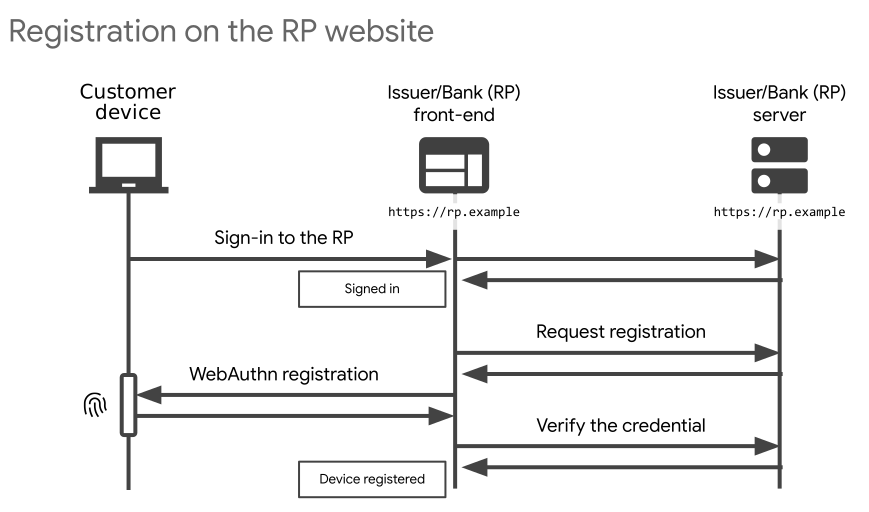
The relying party's (RP's) registration of a device should follow a
sufficiently strong user verification process. The RP must make sure that the
customer has signed in to the website using strong authentication so that the
account is not easily hijacked. Be careful: a lack of security in this process
puts SPC at risk as well.
Once the RP has successfully authenticated the customer, the customer can now
register a device.
### Feature detection
Before asking the customer to register the device, the RP must check that the
browser supports SPC.
const isSecurePaymentConfirmationSupported = async () => {
if (!'PaymentRequest' in window) {
return [false, 'Payment Request API is not supported'];
}
try {
// The data below is the minimum required to create the request and
// check if a payment can be made.
const supportedInstruments = [
{
supportedMethods: "secure-payment-confirmation",
data: {
// RP's hostname as its ID
rpId: 'rp.example',
// A dummy credential ID
credentialIds: [new Uint8Array(1)],
// A dummy challenge
challenge: new Uint8Array(1),
instrument: {
// Non-empty display name string
displayName: ' ',
// Transparent-black pixel.
icon: 'data:image/png;base64,iVBORw0KGgoAAAANSUhEUgAAAAEAAAABCAYAAAAfFcSJAAAADUlEQVR42mNk+P+/HgAFhAJ/wlseKgAAAABJRU5ErkJggg==',
},
// A dummy merchant origin
payeeOrigin: 'https://non-existent.example',
}
}
];
const details = {
// Dummy shopping details
total: {label: 'Total', amount: {currency: 'USD', value: '0'}},
};
const request = new PaymentRequest(supportedInstruments, details);
const canMakePayment = await request.canMakePayment();
return [canMakePayment, canMakePayment ? '' : 'SPC is not available'];
} catch (error) {
console.error(error);
return [false, error.message];
}
};
isSecurePaymentConfirmationSupported().then(result => {
const [isSecurePaymentConfirmationSupported, reason] = result;
if (isSecurePaymentConfirmationSupported) {
// Display the payment button that invokes SPC.
} else {
// Fallback to the legacy authentication method.
}
});
### Register an authenticator
To register a device for SPC, follow the [WebAuthn registration process](https://w3c.github.io/webauthn/#sctn-op-make-cred) with the following
requirements:
- The platform authenticator is required: `authenticatorSelection.authenticatorAttachment` is `platform`.
- The user verification is required: `authenticatorSelection.userVerification` is `required`.
- Discoverable credentials (resident keys) are required: `authenticatorSelection.residentKey` is `required`.
> [!NOTE]
> **Note:** Discoverable credentials are the mechanism in FIDO where authenticators can store information about the user so that the user-agent can provide a UI of accounts for the user to sign in with upon authentication. This UX is not currently actively used, but is required for future compatibility.
> [!NOTE]
> **Note:** For versions M109, M110, and M111 of Chrome Android, `authenticatorSelection.residentKey` needs to be set to `preferred` instead of `required` due to a [technical limitation](https://bugs.chromium.org/p/chromium/issues/detail?id=1393662). From Chrome Android M112 onwards, `required` can be used as with other platforms.
In addition, specify a "payment" extension with `isPayment: true`. Specifying
this extension without meeting the above requirements will throw an exception
> [!NOTE]
> **Note:** WebAuthn supports the `attestation` option which helps the RP to check the manufacturer and the model of the registering authenticator. However, since the Secure Payment Confirmation is currently only available on Chrome, and is restricted to the platform authenticator on certain platforms, this may not be useful and is optional.
Some other caveats:
- `rp.id`: the hostname of the RP. [The eTLD+1](https://web.dev/same-site-same-origin#site) part of the domain must match where it's being registered. It can be used for authentication on domains that match eTLD+1.
- `user.id`: a binary expression of the user identifier. The same identifier will be returned on successful authentication so the RP should provide a consistent user identifier of the card holder.
- `excludeCredentials`: an array of credentials so that the RP can avoid registering the same authenticator.
For more on the WebAuthn registration process, refer to
[webauthn.guide](https://webauthn.guide#registration).
Example registration code:
const options = {
challenge: new Uint8Array([21...]),
rp: {
id: "rp.example",
name: "Fancy Bank",
},
user: {
id: new Uint8Array([21...]),
name: "jane.doe@example.com",
displayName: "Jane Doe",
},
excludeCredentials: [{
id: new Uint8Array([21...]),
type: 'public-key',
transports: ['internal'],
}, ...],
pubKeyCredParams: [{
type: "public-key",
alg: -7 // "ES256"
}, {
type: "public-key",
alg: -257 // "RS256"
}],
authenticatorSelection: {
userVerification: "required",
residentKey: "required",
authenticatorAttachment: "platform",
},
timeout: 360000, // 6 minutes
// Indicate that this is an SPC credential. This is currently required to
// allow credential creation in an iframe, and so that the browser knows this
// credential relates to SPC.
extensions: {
"payment": {
isPayment: true,
}
}
};
try {
const credential = await navigator.credentials.create({ publicKey: options });
// Send new credential info to server for verification and registration.
} catch (e) {
// No acceptable authenticator or user refused consent. Handle appropriately.
}
> [!NOTE]
> **Note:** If the browser does not support the payment extension, it will ignore it and just register the authenticator as a regular public key credential.
After a successful registration, the RP receives a credential to send to the server for verification.
## Verify registration
On the server, the RP must verify the credential and keep the public key for
later use. The server-side registration process is the same as [an ordinary WebAuthn registration](https://webauthn.guide/#registration). Nothing
additional is required to comply with SPC.
## Registration from within an iframe
If the payer hasn't registered their device with the RP (payment issuer), the
payer can register on the merchant website. After a successful authentication
during a purchase, the RP can request the payer register their device
indirectly, from within an iframe.
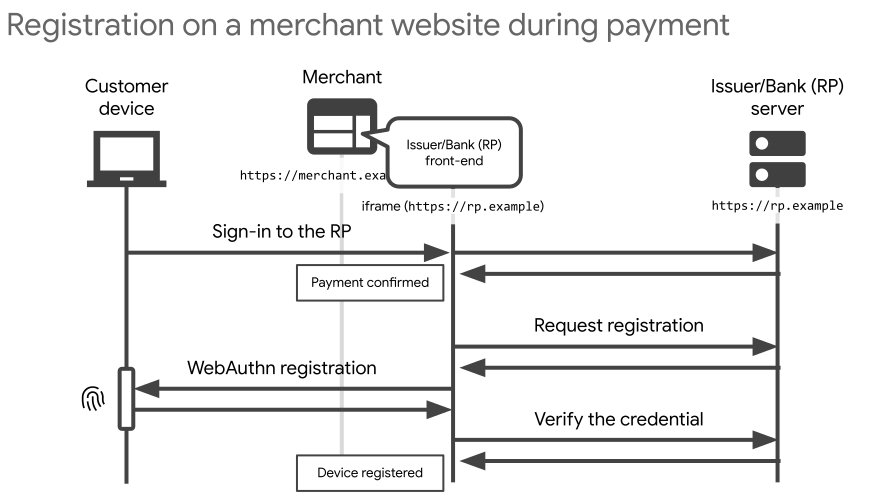
To do so, the merchant or parent must explicitly allow this action within an
iframe using [the Permissions Policy](https://developer.chrome.com/docs/privacy-sandbox/permissions-policy).
The issuer follows the [same steps to register an authenticator](https://developer.chrome.com/docs/payments/register-secure-payment-confirmation#register_an_authenticator) within an iframe.
There are two approaches for the merchant to allow registration:
1. The iframe tag in the HTML served from the merchant domain adds an `allow` attribute:
Make sure the `allow` attribute contains `payment` and the RP origin that invokes WebAuthn registration.
2. The parent frame document (served from the merchant domain) is sent with a `Permissions-Policy` HTTP header:
Permissions-Policy: payment=(self "https://spc-rp.glitch.me")
## Next steps
Once a device is registered to the relying party, the customer can confirm payments on the merchant's website using Secure Payment Confirmation.
- Learn to [authenticate with a Secure Payment Confirmation](https://developer.chrome.com/docs/payments/authenticate-secure-payment-confirmation)
- Read the overview of [Secure Payment Confirmation](https://developer.chrome.com/docs/payments/secure-payment-confirmation)