![Kayce Basques](https://web.dev/images/authors/kaycebasques.jpg) Kayce Basques [X](https://twitter.com/kaycebasques) [GitHub](https://github.com/kaycebasques)

<br />

This guide shows you how to use [Chrome DevTools](https://developer.chrome.com/docs/devtools) to view and change [IndexedDB](https://developer.mozilla.org/docs/Web/API/IndexedDB_API) data. It
assumes you're familiar with DevTools. If not, see [Get started](https://developer.chrome.com/docs/devtools/overview#start). It also assumes you're familiar
with IndexedDB. If not, see [Using IndexedDB](https://developer.mozilla.org/docs/Web/API/IndexedDB_API/Using_IndexedDB).

## View IndexedDB data

1. Click the **Application** tab to open the **Application** panel.
   Expand the **IndexedDB** menu to see which databases are available.
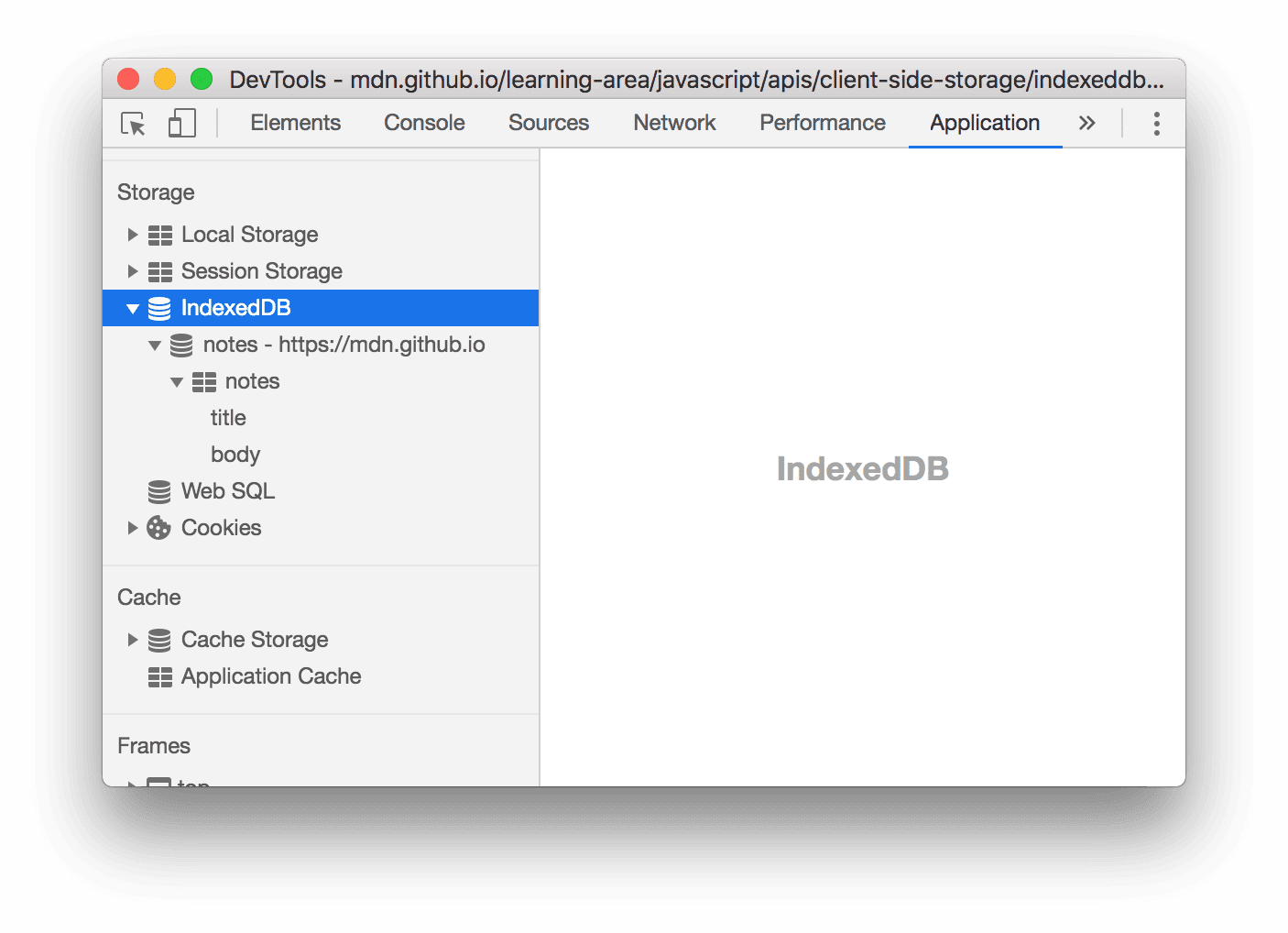
   ![The IndexedDB menu](https://developer.chrome.com/static/docs/devtools/storage/indexeddb/image/the-indexeddb-menu-d6766097f6f11.png)

   **Figure 1** . The **IndexedDB** menu
   - ![Database icon](https://developer.chrome.com/static/docs/devtools/storage/indexeddb/image/database-icon-26ecfe8e959d.png) **notes -
     https://mdn.github.io** represents a database, where **notes** is the name of the database and **https://mdn.github.io** is the origin that can access the database.
   - ![Object Store icon](https://developer.chrome.com/static/docs/devtools/storage/indexeddb/image/object-store-icon-44dbf15be3be2.png) **notes** is an object store.
   - **title** and **body** are [indexes](https://developer.mozilla.org/docs/Web/API/IndexedDB_API/Using_IndexedDB#Using_an_index).

> [!NOTE]
> **Note:** **Known Limitation** Third-party databases are not visible. For example, if you use an `<iframe>` to embed an ad on your page, and your ad network uses IndexedDB, your ad network's IndexedDB data won't be visible. See [issue #943770](https://crbug.com/943770).

1. Click a database to see its origin and version number.

   ![The 'notes' database](https://developer.chrome.com/static/docs/devtools/storage/indexeddb/image/the-notes-database-127460aa9f1d2.png)

   **Figure 2** . The **notes** database
2. Click an object store to see its key-value pairs.

   > [!CAUTION]
   > **Caution:** IndexedDB data does not update in real-time. See [Refresh IndexedDB data](https://developer.chrome.com/docs/devtools/storage/indexeddb#refresh).

   ![The 'notes' object store](https://developer.chrome.com/static/docs/devtools/storage/indexeddb/image/the-notes-object-store-d6612a3c32e63.png)

   **Figure 3** . The **notes** object store
   - **Total entries** is the total number of key-value pairs in the object store.
   - **Key generator value** is the next available key. This field is only shown when using [key
     generators](https://developer.mozilla.org/docs/Web/API/IndexedDB_API/Basic_Concepts_Behind_IndexedDB#gloss_keygenerator).
3. Click a cell in the **Value** column to expand that value.

   ![Viewing an IndexedDB value](https://developer.chrome.com/static/docs/devtools/storage/indexeddb/image/viewing-indexeddb-value-b02a3df41fc07.png)

   **Figure 4**. Viewing an IndexedDB value
4. Click an index, such as **title** or **body** in **Figure 6** below, to sort the object store
   according to the values of that index.

   ![Sorting an object store by an index](https://developer.chrome.com/static/docs/devtools/storage/indexeddb/image/sorting-object-store-an-2cb2809fe8de9.png)

   **Figure 5** . An object store that is sorted alphabetically according to its **title** key

## Refresh IndexedDB data

IndexedDB values in the **Application** panel do not update in real-time. Click **Refresh**
![Refresh](https://developer.chrome.com/static/docs/devtools/storage/indexeddb/image/refresh-339b3ca8f9bc.png) when viewing an object store to
refresh its data, or view a database and click **Refresh database** to refresh all data.

![Viewing a database](https://developer.chrome.com/static/docs/devtools/storage/indexeddb/image/viewing-database-73589d2348166.png)

**Figure 6**. Viewing a database

## Edit IndexedDB data

IndexedDB keys and values are not editable from the **Application** panel. Since DevTools has access
to page context, however, you can run JavaScript code within DevTools that edits IndexedDB data.

### Edit IndexedDB data with Snippets

[Snippets](https://developer.chrome.com/docs/devtools/javascript/snippets) are a way to store and run blocks of JavaScript code within DevTools. When you run a
Snippet, the result is logged to the **Console**. You can use a Snippet to run JavaScript code that
edits an IndexedDB database.

![Using a Snippet to interact with IndexedDB](https://developer.chrome.com/static/docs/devtools/storage/indexeddb/image/using-snippet-interact-dab81ff3bbf4.png)

**Figure 7**. Using a Snippet to interact with IndexedDB

## Delete IndexedDB data

### Delete an IndexedDB key-value pair

1. [View an IndexedDB object store](https://developer.chrome.com/docs/devtools/storage/indexeddb#view).
2. Click the key-value pair that you want to delete. DevTools highlights it blue to indicate that
   it's selected.

   ![Selecting a key-value pair in order to delete it](https://developer.chrome.com/static/docs/devtools/storage/indexeddb/image/selecting-key-value-pair-a534665072d5.png)

   **Figure 8**. Selecting a key-value pair in order to delete it
3. Press the <kbd>Delete</kbd> key or click **Delete Selected**
   ![Delete Selected](https://developer.chrome.com/static/docs/devtools/storage/indexeddb/image/delete-selected-e482249091b3c.png).

   ![How the object store looks after the key-value pair has been deleted](https://developer.chrome.com/static/docs/devtools/storage/indexeddb/image/how-object-store-looks-eb49f2e392fdd.png)

   **Figure 9**. How the object store looks after the key-value pair has been deleted

### Delete all key-value pairs in an object store

1. [View an IndexedDB object store](https://developer.chrome.com/docs/devtools/storage/indexeddb#view).

   ![Viewing an object store](https://developer.chrome.com/static/docs/devtools/storage/indexeddb/image/viewing-object-store-945248a5d676e.png)

   **Figure 10**. Viewing an object store
2. Click **Clear object store**
   ![Clear object store](https://developer.chrome.com/static/docs/devtools/storage/indexeddb/image/clear-object-store-6f3a9c9e1113e.png).

### Delete an IndexedDB database

1. [View the IndexedDB database](https://developer.chrome.com/docs/devtools/storage/indexeddb#view) that you want to delete.
2. Click **Delete database**.

   ![The 'Delete database' button](https://developer.chrome.com/static/docs/devtools/storage/indexeddb/image/the-delete-database-but-a90453b8726ce.png)

   **Figure 11** . The **Delete database** button

### Delete all IndexedDB storage

1. Open the **Clear storage** pane.
2. Make sure that the **IndexedDB** checkbox is enabled.
3. Click **Clear site data**.

   ![The 'Clear storage' pane](https://developer.chrome.com/static/docs/devtools/storage/indexeddb/image/the-clear-storage-pane-61300523186af.png)

   **Figure 12** . The **Clear storage** pane