 Kayce Basques [X](https://twitter.com/kaycebasques) [GitHub](https://github.com/kaycebasques)  Sofia Emelianova [GitHub](https://github.com/sofiayem)
Use the **Privacy and security** panel in Chrome DevTools to inspect and control third-party cookies and check HTTPS protection.
## Overview
The **Privacy and security** panel is divided into two corresponding sections:
- **Privacy** , where you can:
- While DevTools is open, temporarily limit third-party cookies with or without exceptions and test how a website behaves.
- See a table with information on third-party cookies, including whether they were blocked or exempted by the temporary limit mode, and what type of cookies may be impacted.
- **Security**, where you can see your page's origins that includes HTTP security warnings, origin details and certificates.
See [Why HTTPS Matters](https://web.dev/why-https-matters/) to learn why every website should be protected with HTTPS, even sites that don't handle sensitive user data.
## Open the 'Privacy and security' panel
To open the **Security** panel, follow these steps:
1. [Open DevTools](https://developer.chrome.com/docs/devtools/open.md.txt).
2. Open the **Command menu** by pressing:
- macOS: Command+Shift+P
- Windows, Linux, ChromeOS: Control+Shift+P
3. Start typing `privacy`, select **Show privacy and security** , and press Enter.

Alternatively, in the top right corner, select **Customize and control DevTools** \> **More tools** \> **Privacy and security**.
## Privacy: Control and inspect third-party cookies
The **Privacy** section lets you inspect and limit third-party cookies while DevTools is open.
### Limit third-party cookies
To test how a website behaves when third-party cookies are limited in Chrome, do the following:
1. In **Privacy** \> **Controls** , turn on **Temporarily limit third-party cookies**.
2. Turn on the following exceptions, if required:
- **Third-party cookie grace period** . To use this option, enroll a site or a site embedded on it in the [grace period](https://developers.google.com/privacy-sandbox/cookies/temporary-exceptions/grace-period).
- **Heuristics based exception** . In [predefined scenarios](https://developers.google.com/privacy-sandbox/cookies/temporary-exceptions/heuristics-based-exceptions) like pop-ups or redirects, a site embedded on this site can access third-party cookies.

3. To apply the changes, click **Reload** in a prompt at the top of DevTools.
You can now test how the website bahaves and inspect third-party cookies and their issues as described next.
### Inspect third-party cookies
With third-party cookies temporarily limited (with or without exceptions), inspect them in the **Privacy** \> **Third-party cookies** section.
When no third-party cookies are found, you'll see the **Not a crumb left message**.

Alternatively, depending on exceptions, some third-party cookies may be allowed and others blocked. The **Third-party cookies** section lists them in a table that includes information about cookie status and a recommendation.
To filter the table:
- By status, select a status value at the top: **All** , **Allowed** , or **Blocked**.

- By name or domain, start typing a query into the filter box.
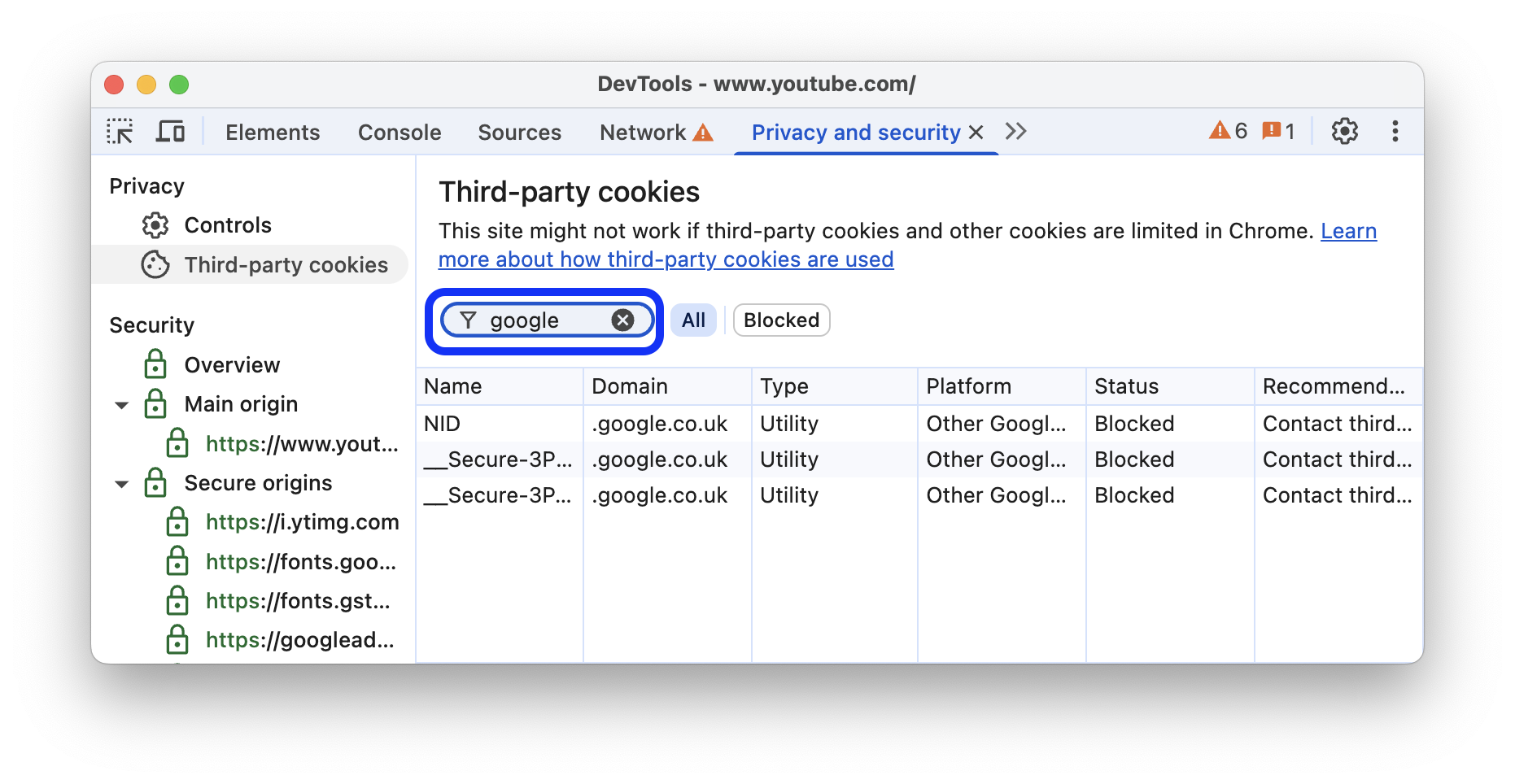
To sort the table, click a column name.
## Security: Find common problems
The **Security** section of the panel may display issues described next.
### Non-secure main origins
When the main origin of a page is not secure, the **Security** \> **Overview** says **This page is not secure**.

This problem occurs when the URL that you visited was requested over HTTP. To make it secure you
need to request it over HTTPS. For example, if you look at the URL in your address bar, it probably
looks similar to `http://example.com`. To make it secure the URL should be `https://example.com`.
If you've already got HTTPS set up on your server, all you need to do to fix this problem is
configure your server to redirect all HTTP requests to HTTPS.
If you don't have HTTPS set up on your server, [Let's Encrypt](https://letsencrypt.org/) provides a free and
relatively-easy way to start the process. Or, you might consider hosting your site on a CDN. Most
major CDNs host sites on HTTPS by default now.
> [!TIP]
> **Tip:** The [Redirect HTTP Traffic To HTTPS](https://web.dev/redirects-http/) audit in [Lighthouse](https://developer.chrome.com/docs/lighthouse) can help automate the process of making sure that all HTTP requests are redirected to HTTPS.
### Broken HTTPS
If there's a problem with HTTPS, the **Security** \> **Overview** tells you what went wrong.

In this case, the page is missing a valid certificate because it expired.
### Mixed content
[Mixed content](https://web.dev/what-is-mixed-content/) means that the main origin of a page is secure, but the page interacts with resources
from non-secure origins. Mixed content pages are only partially protected because the HTTP content
is accessible to sniffers and vulnerable to man-in-the-middle attacks.

Open the **Security** \> **Non-secure origins** section and click **View requests in Network panel**.

DevTools takes you to the **Network** panel and applies relevant filters so that the network log only shows non-secure resources.

### View security details
You can view certificate and origin details as described next.
#### View main origin certificate
From the **Security** \> **Overview** click **View certificate** to quickly inspect the main origin's
certificate.

#### View origin details
Click one of the entries in the **Security** section to view the origin's details. From the details page
you can view connection and certificate information. Certificate transparency information is also
shown when available.
