 Sofia Emelianova [GitHub](https://github.com/sofiayem)
Use the **Search** panel to find text across all loaded resources.
> [!NOTE]
> **Note:** The **Search** panel doesn't show results from network headers and responses. To search across them, follow the steps in [Search network headers and responses](https://developer.chrome.com/docs/devtools/network#search).
Alternatively, use [built-in search bars](https://developer.chrome.com/docs/devtools/search#built-in-search-bars) to find text in a resource opened in a specific tool.
## Overview
The **Search** panel lets you find text across all loaded resources with the option to use regular expressions or case-sensitivity. Once you find the text, you can view its source in the **Sources** panel.
## Open the Search panel
You can open the **Search** panel in several ways. First, [open DevTools](https://developer.chrome.com/docs/devtools/open), then do one of the following:
- In the top-right corner of DevTools, select  **Customize and control DevTools** \> **More tools** \> **Search**.
- Press Esc to open [**Drawer**](https://developer.chrome.com/docs/devtools/customize#drawer), and in the top-left corner, select  **More Tools** \> **Search**.
- Press Command+Option+F (Mac) or Control+Shift+F (Windows/Linux).
## Search for text across all loaded resources
To search for text across all loaded resources, in the search bar on the **Search** panel, type your query and press Enter.
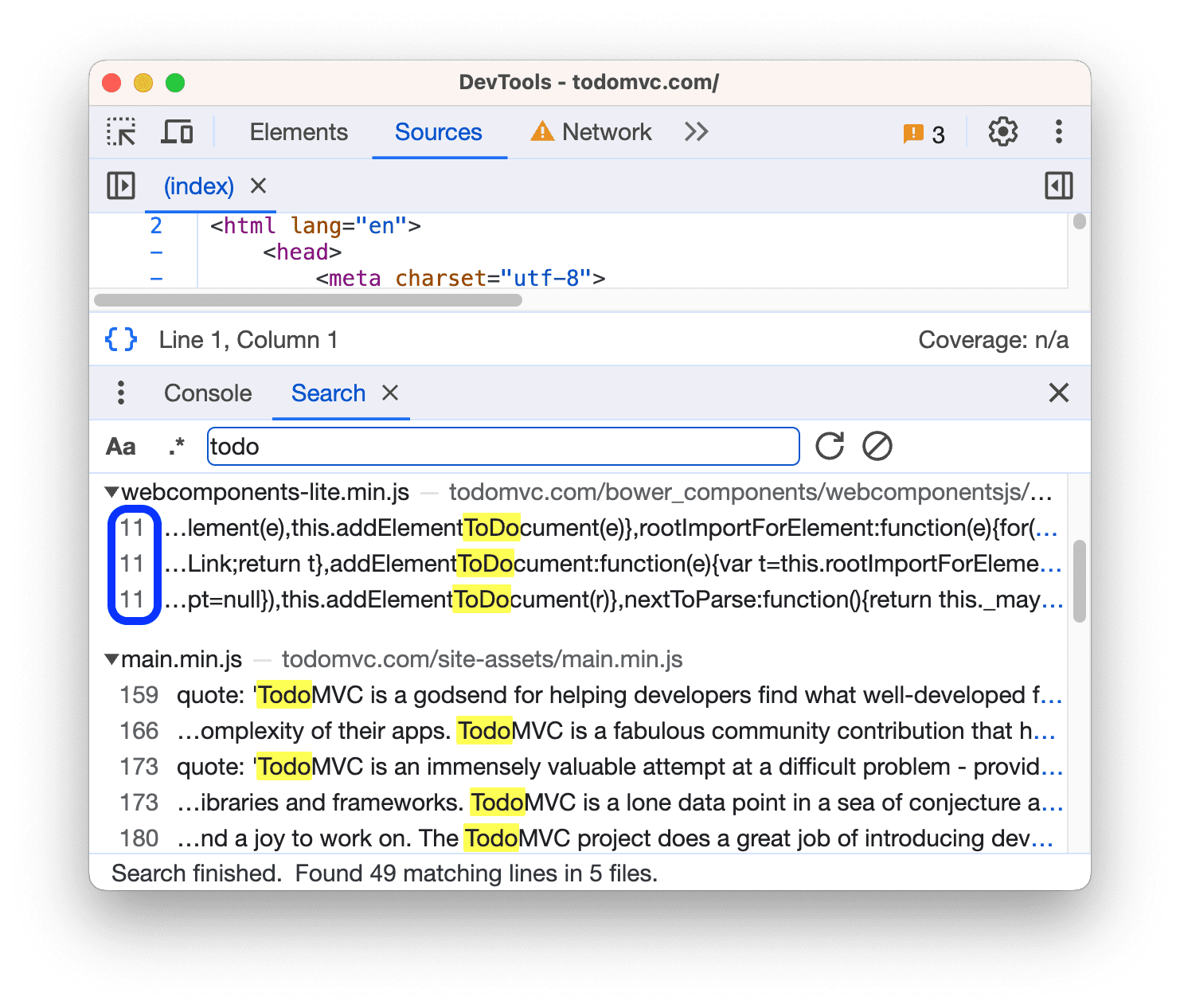
When DevTools finds several matches in a single line, the search results list all of them with the same line number.
Click a search result and DevTools opens the line in **Sources** and scrolls the match into view.
To make your query case-sensitive, toggle the **Match case** button.

To search for text that matches a regular expression, toggle the **Regular expression** button.

> [!TIP]
> **Tip:** You don't need to wrap your regular expression query in forward slashes.
### Rerun a query, expand, and clear results
To rerun your search query, click  **Refresh**.
To expand all search results:
- On Windows / Linux, press Ctrl+Shift+{ or }
- On macOS, press Command+Option+{ or }
To clear your search results, click  **Clear**.
## Search for text in a specific tool
To narrow your search scope to a resource opened in a specific tool, you can use a built-in search bar if the tool supports it.
Search bars have up and down buttons to jump to previous and next search results.
To open a built-in search bar in a specific tool, press Command+F (Mac) or Control+F (Windows/Linux).
Not all DevTools panels and tabs have a built-in search bar but those that do, often provide tool-specific features. Below is a list of tools with search bars and their features.
| Panel or tab | Case-sensitive | RegEx | Scope | Tool-specific features |
|---|---|---|---|---|
| [Elements](https://developer.chrome.com/docs/devtools/dom#search) | | | DOM tree | Search by selector and XPath |
| [Console](https://developer.chrome.com/docs/devtools/console/reference#search) |  |  | Log messages | |
| [Sources](https://developer.chrome.com/docs/devtools/javascript/reference#search) |  |  | Current source file | Replace |
| [Network](https://developer.chrome.com/docs/devtools/network#search) |  |  | Network headers, payloads, and responses | |
| [Performance](https://developer.chrome.com/docs/devtools/performance/reference#search) |  |  | Activities in the **Main** track and requests in the **Network** track | |
| Memory |  | | Profiles | Search sampling profiles by cost, name, and file |
| JavaScript Profiler |  | | CPU profiles | Search by cost, name, and file |
| Quick Source |  |  | Current source file | Replace |