 Sofia Emelianova [GitHub](https://github.com/sofiayem)
Emulate various CSS media features with this reference of emulation options on the **Rendering** tab.
[Video](https://www.youtube.com/watch?v=gOkM1L6azEI)
## Emulate CSS media feature `prefers-color-scheme`
The [`prefers-color-scheme` CSS media feature](https://web.dev/prefers-color-scheme/) indicates if the user prefers light or dark color scheme.
To emulate this condition:
1. On the [prefers-color-scheme](https://web.dev/articles/prefers-color-scheme) page, [open the **Rendering** tab](https://developer.chrome.com/docs/devtools/rendering.md.txt#open-rendering).
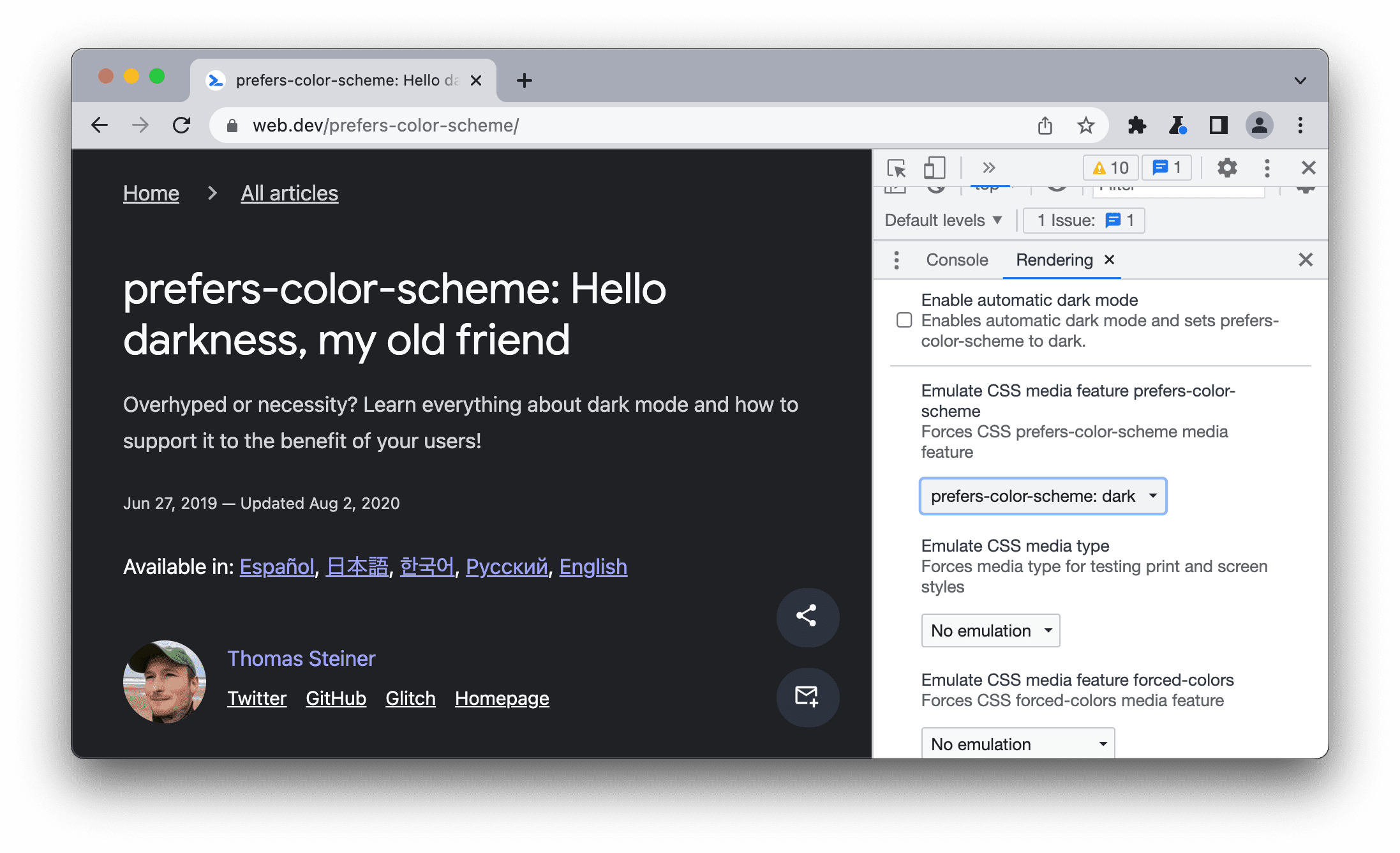
2. Under the **Emulate CSS media feature `prefers-color-scheme`**, select one of the following from the drop-down list:
- No emulation
- `prefers-color-scheme:light`
- `prefers-color-scheme:dark`
3. Reload the page. For example:
## Emulate CSS media type (Enable print preview)
The [print media query](https://developer.mozilla.org/docs/Web/CSS/Media_Queries/Using_media_queries) controls how your page looks when printed.
To force your page into print preview mode:
1. [Open the **Rendering** tab](https://developer.chrome.com/docs/devtools/rendering.md.txt#open-rendering) and under **Emulate CSS media type** select **print**.

2. From here, you can view and change your CSS, like any other web page. See [Get Started With Viewing And Changing CSS](https://developer.chrome.com/docs/devtools/css.md.txt).
## Emulate CSS media feature `forced-colors`
The [`forced-colors` CSS media feature](https://developer.mozilla.org/docs/Web/CSS/@media/forced-colors) indicates if the user agent enabled a forced colors mode. An example of a forced colors mode is Windows High Contrast.
To emulate this condition:
1. [Open the **Rendering** tab](https://developer.chrome.com/docs/devtools/rendering.md.txt#open-rendering).
2. Under the **Emulate CSS media feature `forced-colors`**, select one of the following from the drop-down list:
- No emulation
- `forced-colors:active`
- `forced-colors:none`
With `forced-colors:active` emulated:

## Emulate CSS media feature `prefers-contrast`
The [`prefers-contrast` CSS media feature](https://developer.mozilla.org/docs/Web/CSS/@media/prefers-contrast) indicates if the user requested the web content to present with a higher, lower, or specific contrast value.
To emulate this condition:
1. [Open the **Rendering** tab](https://developer.chrome.com/docs/devtools/rendering.md.txt#open-rendering).
2. Under the **Emulate CSS media feature `prefers-contrast`**, select one of the following from the drop-down list:
- No emulation
- `prefers-contrast:more`
- `prefers-contrast:less`
- `prefers-contrast:custom`
## Emulate CSS media feature `prefers-reduced-motion`
The [`prefers-reduced-motion` CSS media feature](https://web.dev/prefers-reduced-motion/) indicates if the user has requested to minimize the amount of motion on a page.
To emulate this condition:
1. [Open the **Rendering** tab](https://developer.chrome.com/docs/devtools/rendering.md.txt#open-rendering) on this [demo](https://chrome.dev/devtools-prefers-reduced-motion/) and try scrolling to see various animations.
2. Under the **Emulate CSS media feature `prefers-reduced-motion`** , select `prefers-reduced-motion:reduce`.
3. Try scrolling again.
## Emulate CSS media feature `prefers-reduced-transparency`
The [`prefers-reduced-transparency` CSS media feature](https://developer.mozilla.org/docs/Web/CSS/@media/prefers-reduced-transparency) indicates if the user requested to reduce the transparent or translucent layer effects used on the device.
The `prefers-reduced-transparency` feature is [available from Chrome 118](https://developer.chrome.com/blog/chrome-118-beta.md.txt#media_queries_prefers-reduced-transparency_feature) and lets you adapt web content to user-selected preference for reduced transparency in the OS, such as the **Reduce transparency** setting on macOS.
To emulate this condition:
1. [Open the **Rendering** tab](https://developer.chrome.com/docs/devtools/rendering.md.txt#open-rendering).
2. Under the **Emulate CSS media feature `prefers-reduced-transparency`** , select `prefers-reduced-transparency: reduce`.
3. Check if your page displays correctly.
## Emulate CSS media feature `color-gamut`
The [`color-gamut` CSS media feature](https://developer.mozilla.org/docs/Web/CSS/@media/color-gamut) indicates which range of colors the user agent and the output device support.
To emulate this condition:
1. [Open the **Rendering** tab](https://developer.chrome.com/docs/devtools/rendering.md.txt#open-rendering).
2. Under the **Emulate CSS media feature `color-gamut`**, select one of the following from the drop-down list:
- No emulation
- `color-gamut:srgb`---approximately [sRGB](https://en.wikipedia.org/wiki/SRGB) gamut or more
- `color-gamut:p3`---approximately the gamut specified in [Display P3 Color Space](https://www.color.org/chardata/rgb/DisplayP3.xalter) or more
- `color-gamut:rec2020`---approximately the gamut specified in [Rec. 2020](https://en.wikipedia.org/wiki/Rec._2020) or more