 Kayce Basques [X](https://twitter.com/kaycebasques) [GitHub](https://github.com/kaycebasques)  Sofia Emelianova [GitHub](https://github.com/sofiayem)
To see how a web page looks and behaves when JavaScript is disabled:
1. [Open Chrome DevTools](https://developer.chrome.com/docs/devtools/open.md.txt).
2. Depending on your operating system, press one of the following:
- On Window or Linux, Control+Shift+P
- On MacOS, Command+Shift+P
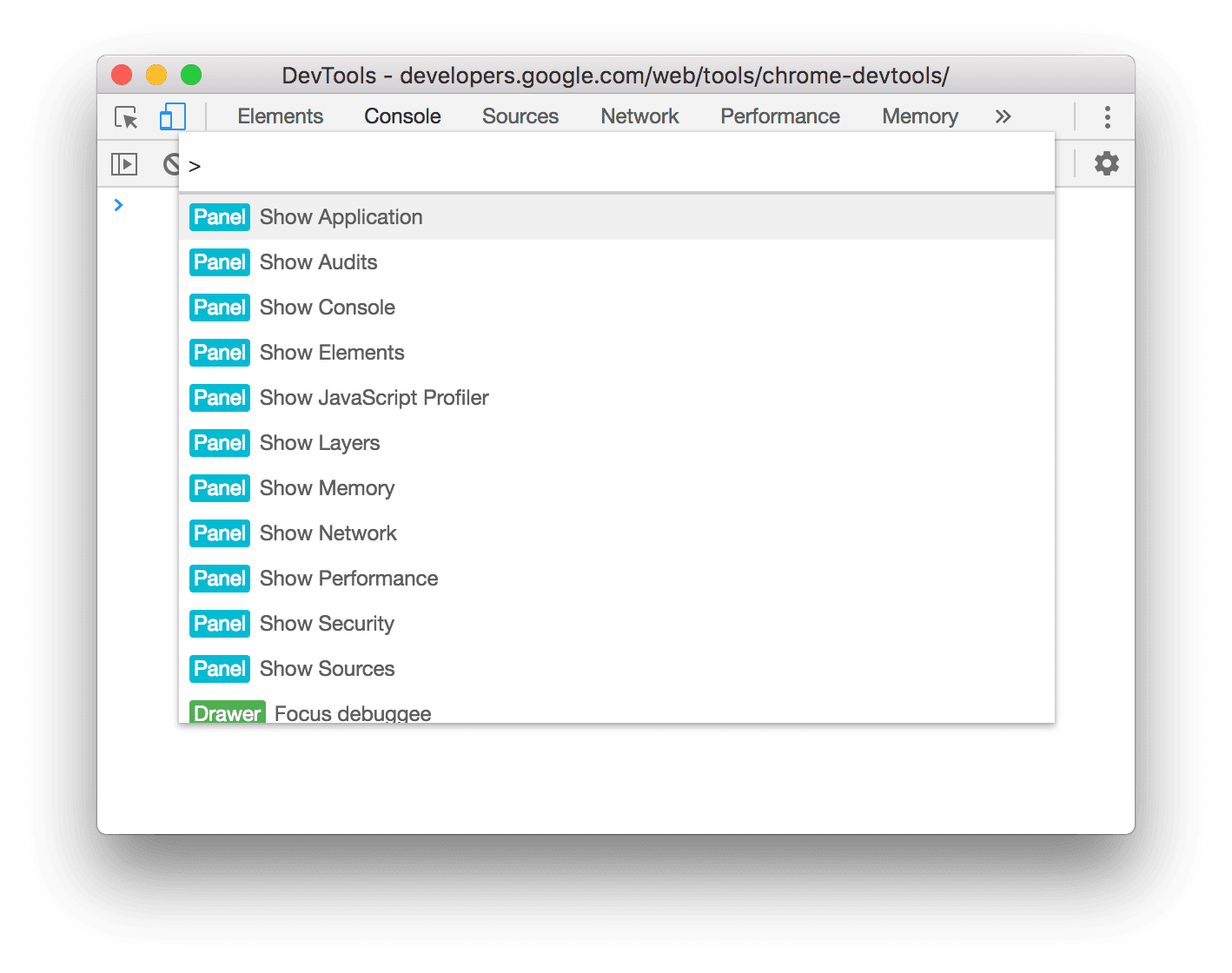
The **Command Menu** opens.
3. Start typing `javascript`, select **Disable JavaScript**, and then press Enter to run the
command. JavaScript is now disabled.

To remind you that JavaScript is disabled, Chrome shows the corresponding  icon in the address bar and DevTools shows a warning  icon next to **Sources**.

JavaScript will remain disabled in this tab so long as you have DevTools open.
You may want to reload the page to see if and how the page depends on JavaScript while loading.
Alternatively, you can disable JavaScript in  [Settings](https://developer.chrome.com/docs/devtools/settings.md.txt#debugger).
To re-enable JavaScript:
- Open the Command Menu again and run the **Enable JavaScript** command.
- Close DevTools.