 Kayce Basques [X](https://twitter.com/kaycebasques) [GitHub](https://github.com/kaycebasques)  Sofia Emelianova [GitHub](https://github.com/sofiayem)
Inspect and modify animations with the Chrome DevTools **Animations** drawer tab.
[Video](https://www.youtube.com/watch?v=lVLzkleL_CE)
## Overview
To capture animations, open the **Animations** panel. It automatically detects animations and sorts them into groups.
The **Animations** panel has two main purposes:
- **Inspect animations**. Slow down, replay, or inspect the source code for an animation group.
- **Modify animations**. Modify the timing, delay, duration, or keyframe offsets of an animation group. Keyframe and Bezier editing isn't supported.
> [!IMPORTANT]
> **Key point:** You can edit the timings of CSS transition and animation easings and configure custom Bezier curves with the [Easing Editor](https://developer.chrome.com/docs/devtools/css/reference.md.txt#edit-easing) in the **Elements** \> **Styles** pane.
The **Animations** panel supports CSS animations, CSS transitions, web animations, and the [View Transitions API](https://developer.chrome.com/docs/web-platform/view-transitions.md.txt).
`requestAnimationFrame` animations are not yet supported.
### What's an animation group?
An animation group is a set of animations that *appear* to be related to each other.
For now, the web has no real concept of a group animation, so motion designers and developers compose and time individual animations to appear as one coherent visual effect. The **Animations** panel predicts related animations based on start time (excluding delays) and groups them side-by-side.
In other words, the **Animations** panel groups together animations triggered in the same script block, but if they're asynchronous, they end up in different groups.
## Open the Animations panel
There are two ways to open the **Animations** panel:
- Select  **Customize and control DevTools** \> **More tools** \> **Animations** . 
- Open the Command Menu by pressing one of the following:
- On macOS: Command+Shift+P
- On Windows, Linux, or ChromeOS: Control+Shift+P
Then start typing `Show Animations` and select the corresponding Drawer panel.

By default, the **Animations** panel opens up as a tab next to the **Console** drawer. As a drawer tab, you can use it with any panel or [move it to the top of DevTools](https://developer.chrome.com/docs/devtools/customize.md.txt#reorder).

The **Animations** panel automatically captures ongoing animations when you open it. If an animation is triggered on page load or has already stopped, reload the page with the panel open.
## Get familiar with the Animations panel UI
The **Animations** panel has four main sections:

1. **Controls** . From here, you can **Clear all** captured animation groups, **Pause** or **Resume** animations, or change the speed of the selected animation group.
2. **Overview** . Shows captured animation groups of two types marked with icons: scroll-driven and regular (time-based).
Select an animation group here to inspect and modify it in the **Details** pane.
3. **Timeline**. Depending on the type of animation group, the timeline can be:
- In pixels for scroll-driven animations.
- In milliseconds for time-based animations.
In the timeline, you can **Replay** an animation, scrub it, or jump to a specific point.
4. **Details**. Inspect and modify the selected animation group.
To capture an animation, trigger it while the **Animations** panel is open.
## Inspect animations
Once you've captured an animation, there are a few ways to replay it:
- Hover over its thumbnail in the **Overview** pane to view a preview of it.
- Drag the playhead (red vertical bar) to scrub the viewport animation or click anywhere on the **Timeline** to set the playhead to a specific point. The animation continues to play if it was already playing and stops otherwise.
- Select the animation group from the **Overview** pane (so that it's displayed in the **Details** pane) and press the  **Replay** button. The animation is replayed in the viewport.
Click the  **Animation speed** buttons in the **Controls** bar to change the preview speed of the selected animation group.
### View animation details
Once you've captured an animation group, click it from the **Overview** pane to view its details.
In the **Details** pane, each individual animation gets its own row. To see the entire name of the corresponding element, resize the name column.

Hover over an animation to highlight it in the viewport. Click the animation to select it in the
**Elements** panel.

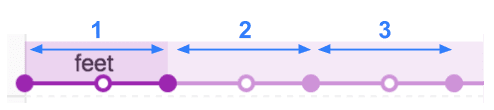
Some animations repeat indefinitely if their `animation-iteration-count` property is set to `infinite`. The **Animations** panel displays their definitions and iterations.

The leftmost, darker section of an animation is its definition. The right, more faded sections
represent iterations.
For example, in the next screenshot, sections two and three represent
iterations of section one.
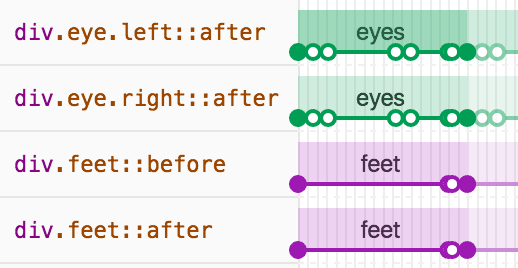
If two elements have the same animation applied to them, the **Animations** panel assigns them the
same color. The color itself is random and has no significance. For example, in the screenshot below
the two elements `div.eye.left::after` and `div.eye.right::after` have the same animation (`eyes`)
applied to them, as do the `div.feet::before` and `div.feet::after` elements.
## Modify animations
There are three ways you can modify an animation with the **Animations** panel:
- Animation duration.
- Keyframe timings.
- Start time delay.
> [!IMPORTANT]
> **Key point:** Any changes you make in the **Animations** tab apply inline styles to the corresponding elements, so you can see and replay the resulting animations right away.
For this section, suppose that the next screenshot represents the original animation:

To change the duration of an animation, drag the first or last circle.

If the animation defines any keyframe rules, then these are represented as white inner circles.
Drag one of these to change the timing of the keyframe.

To add a delay to an animation, click the animation itself, not the circles, then drag it anywhere.

## Edit `@keyframes` live
When you modify [`@keyframes`](https://web.dev/learn/css/animations#keyframe) in **Styles** , you can see the effects in the **Animations** panel right away.
Try it on this [demo page](https://codepen.io/web-dot-dev/live/mdRXGeJ):
1. [Open the **Animations** panel](https://developer.chrome.com/docs/devtools/css/animations.md.txt#open-animations). It captures the ongoing pulse animation on the page automatically. Select the animation under controls in the action bar.
2. In **Elements** , inspect the element with `class="pulser"` and, in **Styles** , find the `@keyframes pulse` section.
3. Try modifying keyframes, for example, change the second keyframe from `50%` to `20%`.
4. Observe how your changes in **Styles** affect the animation captured by the **Animations** panel.
## Edit the `::view-transition` pseudo-elements during an animation
With the [View Transitions API](https://developer.chrome.com/docs/web-platform/view-transitions.md.txt), you can change the DOM in a single step, while creating an animated transition between the two states. During an animation, the API constructs a pseudo-element tree with the following structure:
::view-transition
└─ ::view-transition-group(root)
└─ ::view-transition-image-pair(root)
├─ ::view-transition-old(root)
└─ ::view-transition-new(root)
To edit this structure in **Elements** \> **Styles**:
1. [Open DevTools](https://developer.chrome.com/docs/devtools/open.md.txt) and inspect a page that used the View Transitions API. For example, this [demo page](https://view-transitions.chrome.dev/pagination/spa/).
2. In **Animations** , click **Pause**.
3. On the page, trigger an animation. The **Animations** panel captures it and immediately pauses. You can now find the `::view-transition` structure in the DOM, on top of the `` element.

4. In **Elements** \> **Styles** , modify the CSS of `::view-transition` pseudo-elements.
5. **Resume** the animation and **Replay** it to see the result.
For more information, see [Smooth and simple transitions with the View Transitions API](https://developer.chrome.com/docs/web-platform/view-transitions.md.txt).