 Thomas Steiner [GitHub](https://github.com/tomayac) [LinkedIn](https://www.linkedin.com/in/thomassteinerlinkedin) [Mastodon](https://toot.cafe/@tomayac) [Bluesky](https://bsky.app/profile/tomayac.com) [Homepage](https://blog.tomayac.com/)
Most language models have one thing in common: they are
[fairly large](https://web.dev/articles/llm-sizes) for a resource that's
transferred over the Internet. The smallest MediaPipe object detection model
([`SSD MobileNetV2 float16`](https://arxiv.org/abs/1801.04381)) weighs 5.6 MB
and the largest is around 25 MB.
The open-source large language model (LLM)
[`gemma-2b-it-gpu-int4.bin`](https://www.kaggle.com/models/google/gemma/tfLite/gemma-2b-it-gpu-int4?select=gemma-2b-it-gpu-int4.bin)
clocks in at 1.35 GB---and this is considered very small for an LLM.
Generative AI models can be enormous. This is why a lot of AI usage today happens
in the cloud. Increasingly, apps are running highly optimized models directly
on-device. While [demos of LLMs running in the browser](https://webllm.mlc.ai/)
exist, here are some production-grade examples of other models running in the
browser:

- Adobe Photoshop [runs a variant of the `Conv2D` model](https://blog.tensorflow.org/2023/03/how-adobe-used-web-ml-with-tensorflowjs-to-enhance-photoshop-for-web.html) on-device for its intelligent object selection tool.
- Google Meet [runs an optimized version of the `MobileNetV3-small` model](https://research.google/blog/background-features-in-google-meet-powered-by-web-ml/) for person segmentation for its background blur feature.
- Tokopedia [runs the `MediaPipeFaceDetector-TFJS` model](https://web.dev/case-studies/tokopedia-ml) for real-time face detection to prevent invalid signups to its service.
- Google Colab allows users to use [models from their hard disk](https://colab.research.google.com/notebooks/io.ipynb#scrollTo=BaCkyg5CV5jF) in Colab notebooks.
To make future launches of your applications faster, you should explicitly cache
the model data on-device, rather than relying on the implicit HTTP browser
cache.
While this guide uses the `gemma-2b-it-gpu-int4.bin` model to create a chatbot,
the approach can be generalized to suit other models and other use cases
on-device. The most common way to connect an app to a model is to serve the
model alongside the rest of the app resources. It's crucial to optimize the
delivery.
## Configure the right cache headers
If you serve AI models from your server, it's important to configure the correct
[`Cache-Control`](https://developer.mozilla.org/docs/Web/HTTP/Headers/Cache-Control)
header. The following example shows a solid default setting, which you can build
on for your app's needs.
Cache-Control: public, max-age=31536000, immutable
Each released version of an AI model is a static resource. Content that never
changes should be given a long
[`max-age`](https://developer.mozilla.org/docs/Web/HTTP/Headers/Cache-Control#max-age)
combined with [cache busting](https://web.dev/articles/codelab-http-cache#configure_caching_headers_for_the_versioned_urls)
in the request URL. If you do need to update the model, you must
[give it a new URL](https://web.dev/articles/codelab-http-cache#configure_caching_headers_for_the_versioned_urls).
When the user reloads the page, the client sends a revalidation request, even
though the server knows that the content is stable. The
[`immutable`](https://developer.mozilla.org/docs/Web/HTTP/Headers/Cache-Control#immutable)
directive explicitly indicates that revalidation is unnecessary, because the
content won't change. The `immutable` directive is
[not widely supported](https://developer.mozilla.org/docs/Web/HTTP/Headers/Cache-Control#browser_compatibility)
by browsers and intermediary cache or proxy servers, but by
[combining](https://httpwg.org/specs/rfc8246.html#example%5C) it with the
universally understood `max-age` directive, you can ensure maximum
compatibility. The [`public`](https://developer.mozilla.org/docs/Web/HTTP/Headers/Cache-Control#public)
response directive indicates that the response can be stored in a shared cache.
 Chrome DevTools displays the production `Cache-Control` headers sent by Hugging Face when requesting an AI model. ([Source](https://huggingface.co/spaces/Scrimba/vanilla-js-object-detector))
## Cache AI models client-side
When you serve an AI model, it's important to explicitly cache the model in the
browser. This ensures the model data is readily available after a user reloads
the app.
> [!NOTE]
> **Note:** In general, the Chrome storage team recommends the [Cache API](https://developer.chrome.com/docs/ai/cache-models#cache-api) for optimal performance, to ensure quick access to AI models, reducing load times, and improving responsiveness. This guide discusses the pros and cons of other possible storage mechanisms.
There are a number of techniques you can use to achieve this. For the following
code samples, assume each model file is stored in a
[`Blob`](https://developer.mozilla.org/docs/Web/API/Blob) object named `blob`
in memory.
To understand the performance, each code sample is annotated with the
[`performance.mark()`](https://developer.mozilla.org/docs/Web/API/Performance/mark)
and the [`performance.measure()`](https://developer.mozilla.org/docs/Web/API/Performance/measure)
methods. These measures are device-dependent and not generalizable.
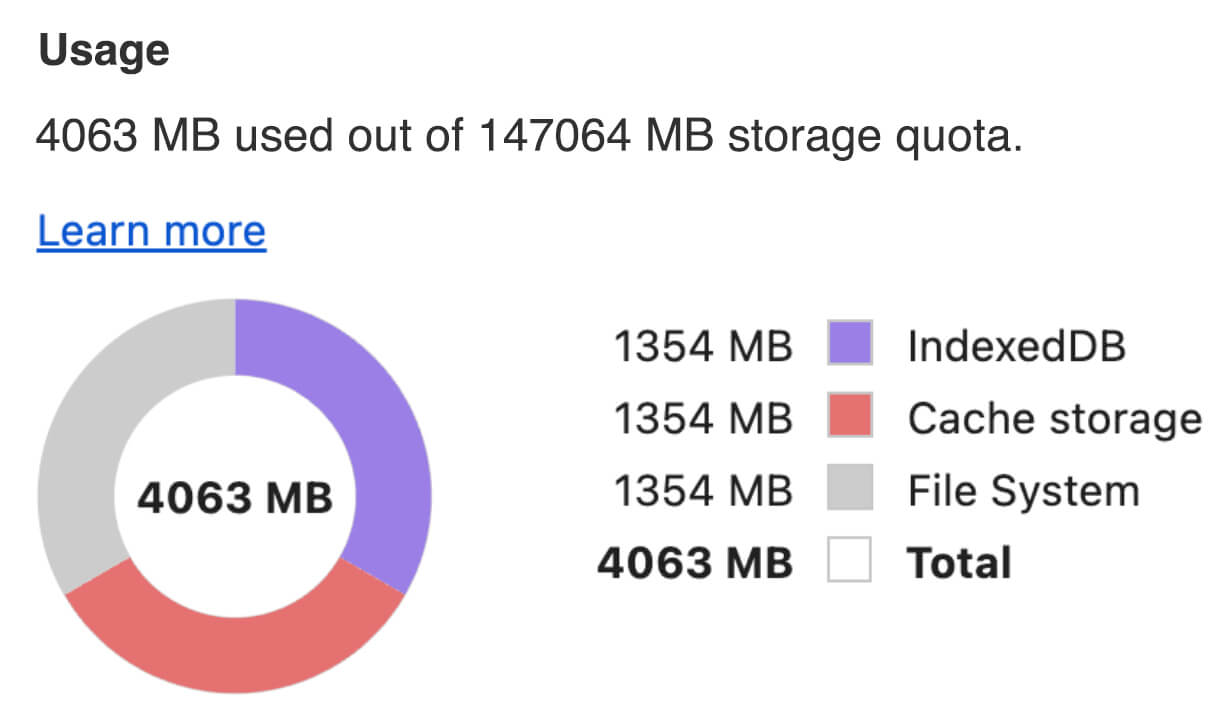 In Chrome DevTools **Application** \> **Storage**, review the usage diagram with segments for IndexedDB, Cache storage, and File System. Each segment is shown to consume 1354 megabytes of data, which totals to 4063 megabytes.
You can choose to use one of following APIs to cache AI models in the browser:
[Cache API](https://developer.chrome.com/docs/ai/cache-models#cache-api), the
[Origin Private File System API](https://developer.chrome.com/docs/ai/cache-models#origin-private-file-system), and
[IndexedDB API](https://developer.chrome.com/docs/ai/cache-models#indexeddb-api). The **general recommendation is to use the
Cache API**, but this guide discusses the advantages and disadvantages of
all options.
### Cache API
The [Cache API](https://developer.mozilla.org/docs/Web/API/Cache) provides
persistent storage for [`Request`](https://developer.mozilla.org/docs/Web/API/Request)
and [`Response`](https://developer.mozilla.org/docs/Web/API/Response) object
pairs that are cached in long-lived memory. Although it's
[defined in the Service Workers spec](https://w3c.github.io/ServiceWorker/#cache-interface),
you can use this API from the main thread or a regular worker. To use it outside
a service worker context, call the
[`Cache.put()`](https://developer.mozilla.org/docs/Web/API/Cache/put) method
with a synthetic `Response` object, paired with a synthetic URL instead of a
`Request` object.
This guide assumes an in-memory `blob`. Use a fake URL as the cache key and a
synthetic `Response` based on the `blob`. If you would directly download the
model, you would use the `Response` you would get from making a `fetch()`
request.
For example, here's how to store and restore a model file with the Cache API.
const storeFileInSWCache = async (blob) => {
try {
performance.mark('start-sw-cache-cache');
const modelCache = await caches.open('models');
await modelCache.put('model.bin', new Response(blob));
performance.mark('end-sw-cache-cache');
const mark = performance.measure(
'sw-cache-cache',
'start-sw-cache-cache',
'end-sw-cache-cache'
);
console.log('Model file cached in sw-cache.', mark.name, mark.duration.toFixed(2));
} catch (err) {
console.error(err.name, err.message);
}
};
const restoreFileFromSWCache = async () => {
try {
performance.mark('start-sw-cache-restore');
const modelCache = await caches.open('models');
const response = await modelCache.match('model.bin');
if (!response) {
throw new Error(`File model.bin not found in sw-cache.`);
}
const file = await response.blob();
performance.mark('end-sw-cache-restore');
const mark = performance.measure(
'sw-cache-restore',
'start-sw-cache-restore',
'end-sw-cache-restore'
);
console.log(mark.name, mark.duration.toFixed(2));
console.log('Cached model file found in sw-cache.');
return file;
} catch (err) {
throw err;
}
};
### Origin Private File System API
The [Origin Private File System](https://developer.mozilla.org/docs/Web/API/File_System_API/Origin_private_file_system)
(OPFS) is a comparatively young [standard](https://fs.spec.whatwg.org/) for a
storage endpoint. It's private to the origin of the page, and thus is invisible
to the user, unlike the regular file system. It provides access to a special
file that is highly optimized for performance and offers write access to its
content.
For example, here's how to store and restore a model file in the OPFS.
const storeFileInOPFS = async (blob) => {
try {
performance.mark('start-opfs-cache');
const root = await navigator.storage.getDirectory();
const handle = await root.getFileHandle('model.bin', { create: true });
const writable = await handle.createWritable();
await blob.stream().pipeTo(writable);
performance.mark('end-opfs-cache');
const mark = performance.measure(
'opfs-cache',
'start-opfs-cache',
'end-opfs-cache'
);
console.log('Model file cached in OPFS.', mark.name, mark.duration.toFixed(2));
} catch (err) {
console.error(err.name, err.message);
}
};
const restoreFileFromOPFS = async () => {
try {
performance.mark('start-opfs-restore');
const root = await navigator.storage.getDirectory();
const handle = await root.getFileHandle('model.bin');
const file = await handle.getFile();
performance.mark('end-opfs-restore');
const mark = performance.measure(
'opfs-restore',
'start-opfs-restore',
'end-opfs-restore'
);
console.log('Cached model file found in OPFS.', mark.name, mark.duration.toFixed(2));
return file;
} catch (err) {
throw err;
}
};
### IndexedDB API
[IndexedDB](https://developer.mozilla.org/de/docs/Web/API/IndexedDB_API/Using_IndexedDB)
is a well-established standard for storing arbitrary data in a persistent manner
in the browser. It's infamously known for its somewhat complex API, but by using
a wrapper library lsuch as [idb-keyval](https://github.com/jakearchibald/idb-keyval)
you can treat IndexedDB like a classic key-value store.
For example:
import { get, set } from 'https://cdn.jsdelivr.net/npm/idb-keyval@latest/+esm';
const storeFileInIDB = async (blob) => {
try {
performance.mark('start-idb-cache');
await set('model.bin', blob);
performance.mark('end-idb-cache');
const mark = performance.measure(
'idb-cache',
'start-idb-cache',
'end-idb-cache'
);
console.log('Model file cached in IDB.', mark.name, mark.duration.toFixed(2));
} catch (err) {
console.error(err.name, err.message);
}
};
const restoreFileFromIDB = async () => {
try {
performance.mark('start-idb-restore');
const file = await get('model.bin');
if (!file) {
throw new Error('File model.bin not found in IDB.');
}
performance.mark('end-idb-restore');
const mark = performance.measure(
'idb-restore',
'start-idb-restore',
'end-idb-restore'
);
console.log('Cached model file found in IDB.', mark.name, mark.duration.toFixed(2));
return file;
} catch (err) {
throw err;
}
};
### Mark storage as persisted
Call [`navigator.storage.persist()`](https://developer.mozilla.org/docs/Web/API/StorageManager/persist)
at the end of any of these caching methods to request permission to use
persistent storage. This method returns a promise that resolves to `true` if
permission is granted, and `false` otherwise. The browser
[may or may not honor the request](https://developer.mozilla.org/docs/Web/API/Storage_API/Storage_quotas_and_eviction_criteria#does_browser-stored_data_persist),
depending on browser-specific rules.
if ('storage' in navigator && 'persist' in navigator.storage) {
try {
const persistent = await navigator.storage.persist();
if (persistent) {
console.log("Storage will not be cleared except by explicit user action.");
return;
}
console.log("Storage may be cleared under storage pressure.");
} catch (err) {
console.error(err.name, err.message);
}
}
> [!TIP]
> **Tip** : Use the [Storage Buckets API](https://developer.chrome.com/docs/web-platform/storage-buckets) in supported browsers to mark your model as persisted:
>
> ```javascript
> // Create a persisted storage bucket specifically for models.
> const modelsBucket = await navigator.storageBuckets.open('models', {
> durability: 'strict',
> persisted: true,
> });
> ```
## Special case: Use a model on a hard disk
You can reference AI models directly from a user's hard disk as an alternative
to browser storage. This technique can help research-focused apps showcase the
feasibility of running given models in the browser, or allow artists to use
self-trained models in expert creativity apps.
### File System Access API
With the [File System Access API](https://developer.mozilla.org/docs/Web/API/File_System_API),
you can open files from the hard disk and obtain a
[FileSystemFileHandle](https://developer.mozilla.org/docs/Web/API/FileSystemFileHandle)
that you can persist to IndexedDB.
With this pattern, the user only needs to grant access to the model file
once. Thanks to [persisted permissions](https://developer.chrome.com/blog/persistent-permissions-for-the-file-system-access-api),
the user can choose to permanently grant access to the file. After reloading the
app and a required user gesture, such as a mouse click, the
`FileSystemFileHandle` can be restored from IndexedDB with access to the file
on the hard disk.
The file access permissions are queried and requested if necessary, which makes
this seamless for future reloads. The following example shows how to get a
handle for a file from the hard disk, and then store and restore the handle.
> [!NOTE]
> **Note:** If the File System Access API isn't supported by the browser, the [browser-fs-access](https://developer.chrome.com/docs/capabilities/browser-fs-access) used in the following code snippet library falls back to ``. This allows the app to access to the model file, however, the user must manually open the model files each time they reload the app.
import { fileOpen } from 'https://cdn.jsdelivr.net/npm/browser-fs-access@latest/dist/index.modern.js';
import { get, set } from 'https://cdn.jsdelivr.net/npm/idb-keyval@latest/+esm';
button.addEventListener('click', async () => {
try {
const file = await fileOpen({
extensions: ['.bin'],
mimeTypes: ['application/octet-stream'],
description: 'AI model files',
});
if (file.handle) {
// It's an asynchronous method, but no need to await it.
storeFileHandleInIDB(file.handle);
}
return file;
} catch (err) {
if (err.name !== 'AbortError') {
console.error(err.name, err.message);
}
}
});
const storeFileHandleInIDB = async (handle) => {
try {
performance.mark('start-file-handle-cache');
await set('model.bin.handle', handle);
performance.mark('end-file-handle-cache');
const mark = performance.measure(
'file-handle-cache',
'start-file-handle-cache',
'end-file-handle-cache'
);
console.log('Model file handle cached in IDB.', mark.name, mark.duration.toFixed(2));
} catch (err) {
console.error(err.name, err.message);
}
};
const restoreFileFromFileHandle = async () => {
try {
performance.mark('start-file-handle-restore');
const handle = await get('model.bin.handle');
if (!handle) {
throw new Error('File handle model.bin.handle not found in IDB.');
}
if ((await handle.queryPermission()) !== 'granted') {
const decision = await handle.requestPermission();
if (decision === 'denied' || decision === 'prompt') {
throw new Error('Access to file model.bin.handle not granted.');
}
}
const file = await handle.getFile();
performance.mark('end-file-handle-restore');
const mark = performance.measure(
'file-handle-restore',
'start-file-handle-restore',
'end-file-handle-restore'
);
console.log('Cached model file handle found in IDB.', mark.name, mark.duration.toFixed(2));
return file;
} catch (err) {
throw err;
}
};
These methods aren't mutually exclusive. There may be a case where you both
explicitly cache a model in the browser and use a model from a user's hard disk.
## Demo
You can see all three regular case storage methods and the hard disk method
implemented in the [MediaPipe LLM demo](https://googlechrome.github.io/samples/mediapipe-llm/).
> [!NOTE]
> **Note:** In the [source code](https://github.com/GoogleChrome/samples/tree/gh-pages/mediapipe-llm), the demo races all storage methods against one another, for both storing and restoring. In the worst case, the model is redundantly stored four times. This is for demonstration only, and shouldn't be done in production.
## Bonus: Download a large file in chunks
If you need to download a large AI model from the Internet, parallelize the
download into separate chunks, then stitch together again on the client.
The package [`fetch-in-chunks`](https://npmjs.com/fetch-in-chunks) provides a
helper function that you can use in your code. You only need to pass
it the `url`. The `maxParallelRequests` (default: 6), the `chunkSize`
(default: the to-be-downloaded file size divided by `maxParallelRequests`), the
`progressCallback` function (which reports on the
`downloadedBytes` and the total `fileSize`), and the `signal` for an
`AbortSignal` signal are all optional.
import fetchInChunks from 'fetch-in-chunks';
async function downloadFileWithProgress() {
try {
const blob = await fetchInChunks('https://example.com/largefile.zip', {
progressCallback: (downloaded, total) => {
console.log(`Downloaded ${((downloaded / total) * 100).toFixed(2)}%`);
},
});
return blob;
} catch (error) {
console.error('Error fetching file:', error);
}
}
downloadFileWithProgress();
## Choose the right method for you
This guide has explored various methods for effectively caching AI models in the
browser, a task that's crucial for enhancing the user's experience with and the
performance of your app. The Chrome storage team recommends the Cache API for
optimal performance, to ensure quick access to AI models, reducing load times,
and improving responsiveness.
The OPFS and IndexedDB are less usable options. The OPFS and the IndexedDB APIs
need to serialize the data before it can be stored. IndexedDB also needs to
deserialize the data when it's retrieved, making it the worst place to store
large models.
For niche applications, the File System Access API offers direct access to files
on a user's device, ideal for users who manage their own AI models.
If you need to secure your AI model, keep it on the server. Once stored on the
client, it's trivial to extract the data from both the Cache and IndexedDB with
DevTools or [the OFPS DevTools extension](https://chromewebstore.google.com/detail/opfs-explorer/acndjpgkpaclldomagafnognkcgjignd).
These storage APIs are inherently equal in security. You might be tempted to
store an encrypted version of the model, but you then need to get the decryption
key to the client, which could be intercepted. This means a bad actor's attempt
to steal steal your model is slightly harder, but not impossible.
We encourage you to choose a caching strategy that aligns with your app's
requirements, target audience behavior, and the characteristics of the AI models
used. This ensures your applications are responsive and robust under various
network conditions and system constraints.
*** ** * ** ***
## Acknowledgements
This was reviewed by Joshua Bell, Reilly Grant, Evan Stade, Nathan Memmott,
Austin Sullivan, Etienne Noël, André Bandarra, Alexandra Klepper,
François Beaufort, Paul Kinlan, and Rachel Andrew.