Improved user experience, minimized incentives to install ad blockers, and reduced data consumption


![François Beaufort](https://web.dev/images/authors/beaufortfrancois.jpg) François Beaufort [GitHub](https://github.com/beaufortfrancois)

<br />

> [!NOTE]
> **Note:** The Autoplay Policy launched in Chrome 66 for audio and video elements and is effectively blocking roughly half of unwanted media autoplays in Chrome. For the Web Audio API, the autoplay policy launched in Chrome 71. This affects web games, some WebRTC applications, and other web pages using audio features. More details can be found in the [Web Audio API](https://developer.chrome.com/blog/autoplay#web_audio) section below.

Chrome's autoplay policies changed in April of 2018 and I'm here to tell
you why and how this affects video playback with sound. Spoiler
alert: users are going to love it!
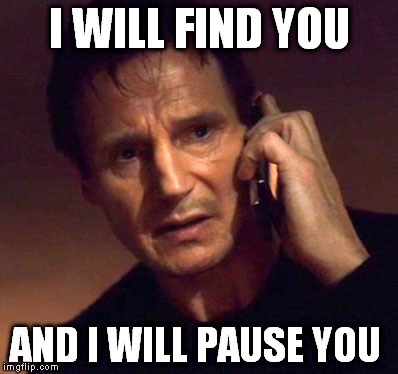
![Liam Neeson: I will find you and I will pause you.](https://developer.chrome.com/static/blog/autoplay/image/liam-neeson-will-find-a2c50097288a9.jpeg) Internet meme tagged "autoplay" found on [Imgflip](https://imgflip.com/i/ngd6c). ![Sean Bean: One does not simply autoplay videoas.](https://developer.chrome.com/static/blog/autoplay/image/sean-bean-does-simply-0d857d6f4d0c1.jpeg) Internet meme tagged "autoplay" found on [Imgur](https://imgur.com/a/p1ZjC).

## New behaviors

As you may have [noticed](https://webkit.org/blog/7734/auto-play-policy-changes-for-macos/), web browsers are moving towards stricter autoplay
policies in order to improve the user experience, minimize incentives to install
ad blockers, and reduce data consumption on expensive and/or constrained
networks. These changes are intended to give greater control of playback to
users and to benefit publishers with legitimate use cases.

Chrome's autoplay policies are simple:

- Muted autoplay is always allowed.
- Autoplay with sound is allowed if:
  - The user has interacted with the domain (click, tap, etc.).
  - On desktop, the user's [Media Engagement Index](https://developer.chrome.com/blog/autoplay#media_engagement_index) threshold has been crossed, meaning the user has previously played video with sound.
  - The user has [added the site to their home screen](https://web.dev/customize-install/) on mobile or [installed the PWA](https://web.dev/progressive-web-apps/) on desktop.
- Top frames can [delegate autoplay permission](https://developer.chrome.com/blog/autoplay#iframe_delegation) to their iframes to allow autoplay with sound.

### Media Engagement Index

The Media Engagement Index (MEI) measures an individual's propensity to consume
media on a site. Chrome's approach is a ratio of visits to significant media
playback events per origin:

- Consumption of the media (audio/video) must be greater than seven seconds.
- Audio must be present and unmuted.
- The tab with the video is active.
- Size of the video (in px) must be greater than [200x140](https://chromium.googlesource.com/chromium/src/+/1c63b1b71d28851fc495fdee9a2c724ea148e827/chrome/browser/media/media_engagement_contents_observer.cc#38).

From that, Chrome calculates a media engagement score, which is highest on sites
where media is played on a regular basis. When it is high enough, media is
allowed to autoplay on desktop only.

A user's MEI is available at the `about://media-engagement` internal page.
![Screenshot of about://media-engagement internal page.](https://developer.chrome.com/static/blog/autoplay/image/screenshot-aboutmedia-64ed320fffd89.png) Screenshot of the `about://media-engagement` internal page in Chrome.

### Developer switches

As a developer, you may want to change Chrome autoplay policy behavior locally
to test your website for different levels of user engagement.

- You can disable the autoplay policy entirely by using a [command line
  flag](https://www.chromium.org/developers/how-tos/run-chromium-with-flags):
  `chrome.exe --autoplay-policy=no-user-gesture-required`.
  This allows you to test your website as if user were strongly engaged with
  your site and playback autoplay would be always allowed.

- You can also decide to make sure autoplay is never allowed by disabling MEI and
  whether sites with the highest overall MEI get autoplay by default for
  new users. [Do this with flags](https://www.chromium.org/developers/how-tos/run-chromium-with-flags): `chrome.exe
  --disable-features=PreloadMediaEngagementData,
  MediaEngagementBypassAutoplayPolicies`.

### Iframe delegation

A [permissions policy](https://developer.chrome.com/docs/privacy-sandbox/permissions-policy) allows developers to selectively enable and disable
browser features and APIs. Once an origin has received autoplay
permission, it can delegate that permission to cross-origin iframes with the
[permissions policy for autoplay](https://github.com/WICG/feature-policy/blob/main/features.md). Note that autoplay is allowed by default on
same-origin iframes.

    <!-- Autoplay is allowed. -->
    <iframe src="https://cross-origin.com/myvideo.html" allow="autoplay">

    <!-- Autoplay and Fullscreen are allowed. -->
    <iframe src="https://cross-origin.com/myvideo.html" allow="autoplay; fullscreen">

When the permissions policy for autoplay is disabled, calls to `play()` without a
user gesture will reject the promise with a `NotAllowedError` DOMException. And
the autoplay attribute will also be ignored.

> [!WARNING]
> **Warning:** Older articles incorrectly recommend using the attribute `gesture=media` which is not supported.

### Examples

**Example 1:** Every time a user visits `VideoSubscriptionSite.com` on their
laptop they watch a TV show or a movie. As their media engagement score is
high, autoplay is allowed.

**Example 2:** `GlobalNewsSite.com` has both text and video content.
Most users go to the site for text content and watch videos only occasionally.
Users' media engagement score is low, so autoplay wouldn't be allowed if a user
navigates directly from a social media page or search.

**Example 3:** `LocalNewsSite.com` has both text and video content.
Most people enter the site through the homepage and then click on the news
articles. Autoplay on the news article pages would be allowed because of user
interaction with the domain. However, care should be taken to make sure users
aren't surprised by autoplaying content.

**Example 4:** `MyMovieReviewBlog.com` embeds an iframe with a movie trailer to
go with a review. Users interacted with the domain to get to the blog, so
autoplay is allowed. However, the blog needs to explicitly delegate that
privilege to the iframe in order for the content to autoplay.

### Chrome enterprise policies

It is possible to change the autoplay behavior with Chrome enterprise policies
for use cases such as kiosks or unattended systems. Check out the [Policy
List](https://chromeenterprise.google/policies/) help page to learn how to set the autoplay related enterprise
policies:

- The `https://chromeenterprise.google/policies#AutoplayAllowed` policy controls whether autoplay is allowed or not.
- The `https://chromeenterprise.google/policies#AutoplayAllowlist` policy allows you to specify an allowlist of URL patterns where autoplay will always be enabled.

## Best practices for web developers

### Audio/Video elements

Here's the one thing to remember: Don't ever assume a video will play, and
don't show a pause button when the video is not actually playing. It is so
important that I'm going to write it one more time below for those who simply
skim through that post.

> [!IMPORTANT]
> **Key point:** Don't assume a video will play, and don't show a pause button when the video is not actually playing.

You should always look at the [Promise](https://developer.mozilla.org/docs/Web/JavaScript/Reference/Global_Objects/Promise) returned by the play function to see if
it was [rejected](https://developer.chrome.com/blog/play-request-was-interrupted):

    var promise = document.querySelector('video').play();

    if (promise !== undefined) {
      promise.then(_ => {
        // Autoplay started!
      }).catch(error => {
        // Autoplay was prevented.
        // Show a "Play" button so that user can start playback.
      });
    }

> [!CAUTION]
> **Caution:** Don't play interstitial ads without showing any media controls as they may not autoplay and users will have no way of starting playback.

One cool way to engage users is to use muted autoplay and let them chose
to unmute. (See the example below.) Some websites already do this effectively,
including Facebook, Instagram, Twitter, and YouTube.

    <video id="video" muted playsinline autoplay>
    <button id="unmuteButton"></button>

    <script>
      unmuteButton.addEventListener('click', function() {
        video.muted = false;
      });
    </script>

Events that trigger user activation are still to be defined consistently across
browsers. I'd recommend you stick to `"click"` for the time being then. See
[GitHub issue whatwg/html#3849](https://github.com/whatwg/html/issues/3849).

### Web Audio

The [Web Audio API](https://developer.mozilla.org/docs/Web/API/Web_Audio_API) has been covered by autoplay since Chrome 71.
There are a few things to know about it. First, it is good practice to wait for
a user interaction before starting audio playback so that users are aware of
something happening. Think of a "play" button or "on/off" switch for instance.
You can also add an "unmute" button depending on the flow of the app.

> [!NOTE]
> **Note:** If an `AudioContext` is created before the document receives a user gesture, it will be created in the "suspended" state, and you will need to call `resume()` after the user gesture.

If you create your `AudioContext` on page load, you'll have to call `resume()`
at some time after the user interacted with the page (e.g., after a user clicks
a button). Alternatively, the `AudioContext` will be resumed after a user
gesture if `start()` is called on any attached node.

    // Existing code unchanged.
    window.onload = function() {
      var context = new AudioContext();
      // Setup all nodes
      // ...
    }

    // One-liner to resume playback when user interacted with the page.
    document.querySelector('button').addEventListener('click', function() {
      context.resume().then(() => {
        console.log('Playback resumed successfully');
      });
    });

You may also create the `AudioContext` only when the user interacts with the
page.

    document.querySelector('button').addEventListener('click', function() {
      var context = new AudioContext();
      // Setup all nodes
      // ...
    });

To detect whether the browser requires a user interaction to play audio, check
`AudioContext.state` after you've created it. If playing is allowed, it should
immediately switch to `running`. Otherwise it will be `suspended`. If you listen
to the `statechange` event, you can detect changes asynchronously.

To see an example, check out the small [Pull Request](https://github.com/GoogleChromeLabs/airhorn/pull/37) that fixes
Web Audio playback for these autoplay policy rules for [https://airhorner.com](https://airhorner.com/).

> [!NOTE]
> **Note:** You can find a summary of [Chrome's autoplay feature](https://www.chromium.org/audio-video/autoplay/) on the Chromium site.